
Access accounts and the admin login
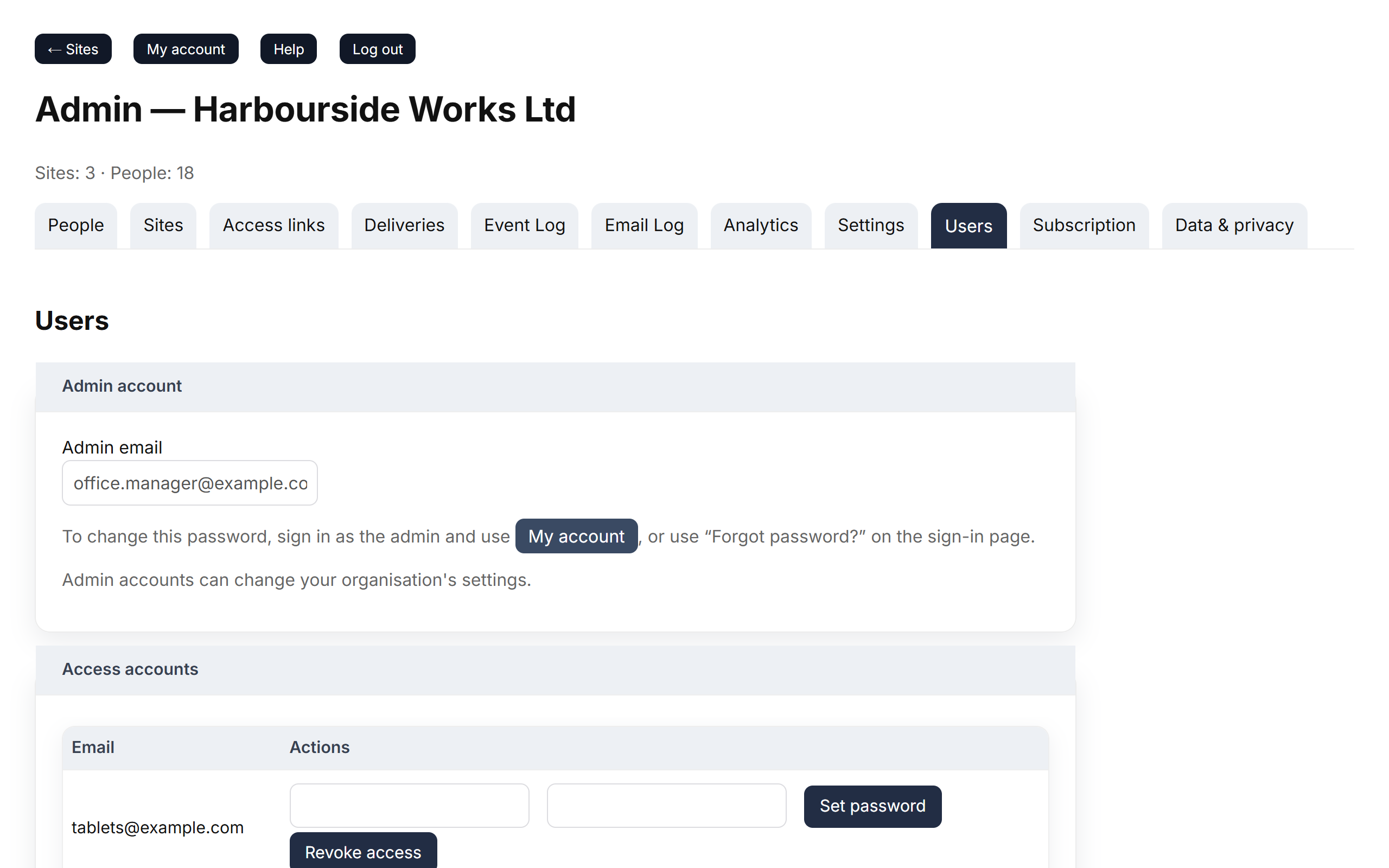
Admin → Users manages two kinds of login:
| Login | Can do | Use it for |
|---|---|---|
| Admin account | Everything, including settings and billing | You |
| Access accounts | Only the list of sites and the sign-in screens | Tablets at your sites |
Create an access account
- Go to Admin → Users.
- Under Add new access account, enter an Email (for example
frontdesk@example.com), a Password and Confirm. - Click Create and confirm.
Passwords must be at least 10 characters. The email doesn't need to be a real inbox, but using a real one means the account can reset its own password.
Change an access account's password
In the Access accounts table, type the new password twice in that account's row and click Set password.
Remove an access account
Click Revoke access and confirm. Tablets using it are signed out straight away.
The admin password
The Admin account section shows your admin login's email. Its password can't be changed from this page: sign in as the admin and use My account, or use Forgot password? on the login page (how).
Good to know
- One access account can stay signed in on up to 50 tablets. For lots of sites, consider one account per site or area — then you can revoke one without affecting the others.
- An email that already has a Clavarius login (for example an admin's) can't also be an access account. Use a different email.
- Access accounts can't change their own password from inside Clavarius; an admin sets it here.