
Record a delivery
The Deliveries button appears on the sign-in screen once an admin has turned deliveries on for the site (how).
Steps
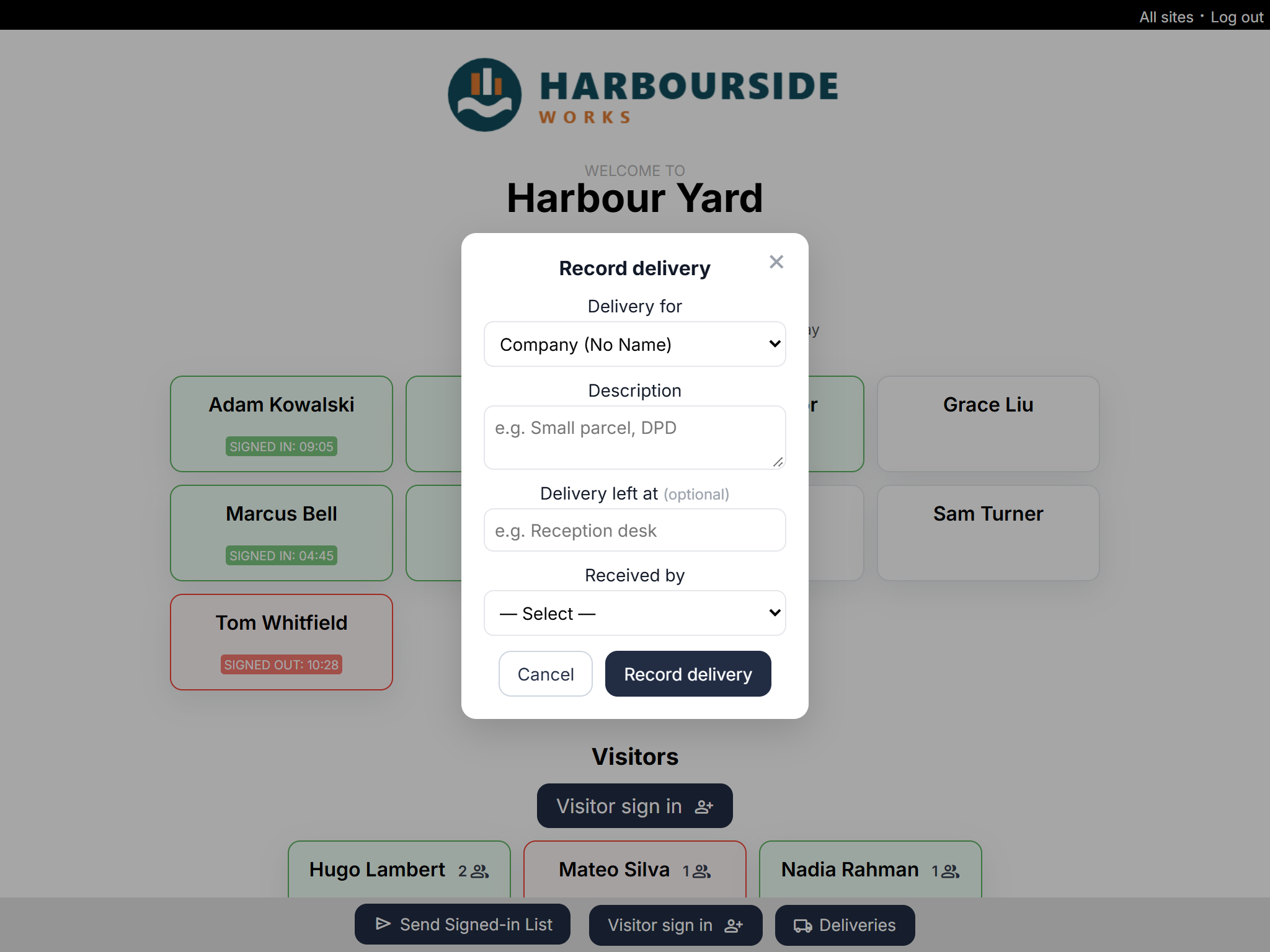
- Tap Deliveries, then Record delivery.
- Choose who it's for in Delivery for. Choose Company (No Name) if it isn't for a particular person.
- Enter a Description, for example "Small parcel, courier".
- Optionally, say where it was left in Delivery left at (optional), for example "Reception desk".
- Choose who took it in under Received by.
- Tap Record delivery.
Who gets told
- A person: they're emailed straight away with the description, where it was left, who received it, the site and the time — as long as their email address is filled in under Admin → People.
- Company (No Name): the company contacts in Admin → Deliveries are emailed, if you've added any.
The delivery is always saved, even if nobody could be emailed. The message on screen tells you whether an email was sent.
Seeing past deliveries
Tap Deliveries, then View delivery log. The newest deliveries for this site come first; tap Show more for older ones. Deliveries that were emailed are marked ✓ notified.