
First-day checklist
When you first sign in to a new organisation, the admin area shows a Get set up checklist. Each item ticks itself off as you complete it. Here's what each one means.
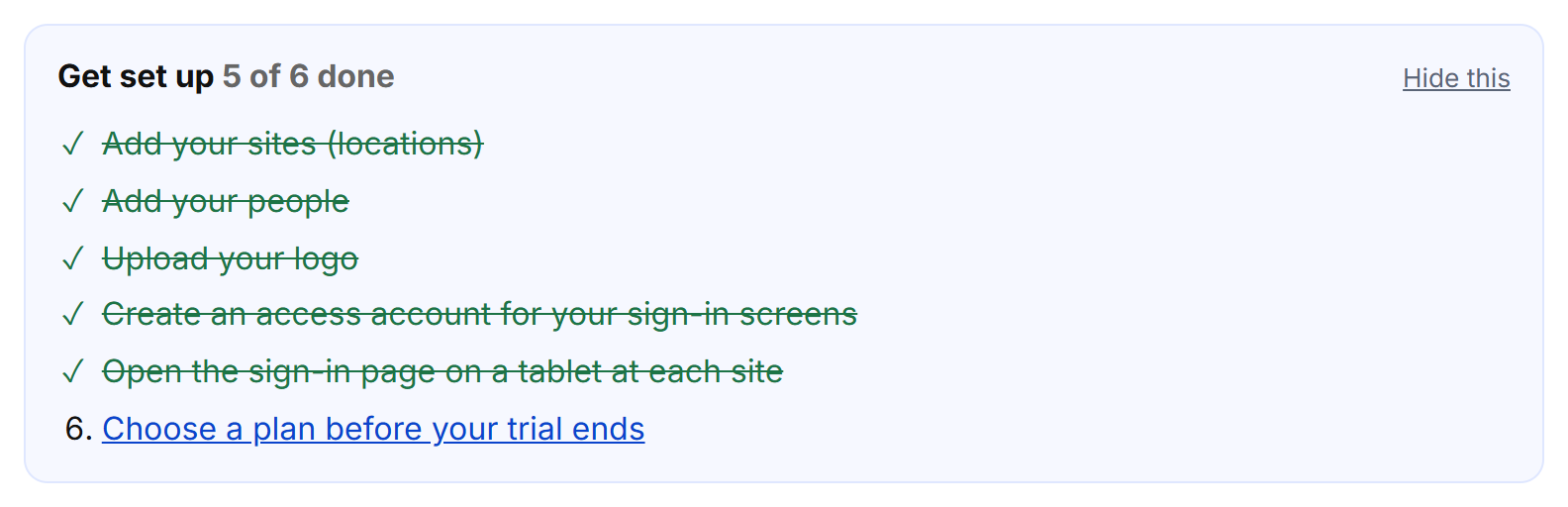
1. Add your sites (locations)
A site is a physical location with its own sign-in screen — an office, a yard, a warehouse. See Add and manage sites.
2. Add your people
Add the staff who should appear on the sign-in screen. You can limit each person to certain sites, or leave them available everywhere. See Add and edit people.
3. Upload your logo
Your logo appears on the sign-in screens, on view-only links and in emails. See Company settings and branding.
4. Create an access account for your sign-in screens
Tablets should sign in with an access account, not your admin login. An access account can only use the sign-in screens, so nobody at the front door can reach your settings. See Access accounts.
5. Open the sign-in page on a tablet at each site
Sign the tablet in with the access account and open the page for that site. This item ticks off after the first staff sign-in. See Set up a sign-in tablet.
You can hide the checklist at any time with Hide this. It also disappears once everything is done.