
Add and edit people
People are the staff who appear on your sign-in screens. It's the first tab in Admin.
Add a person
- Go to Admin → People.
- Under Create person, fill in:
- Full name (required)
- Email — optional, but needed if you want them emailed about deliveries
- Phone — optional
- Sites — start typing to pick sites. Leave it empty and they'll appear at all sites.
- Click Create person and confirm.
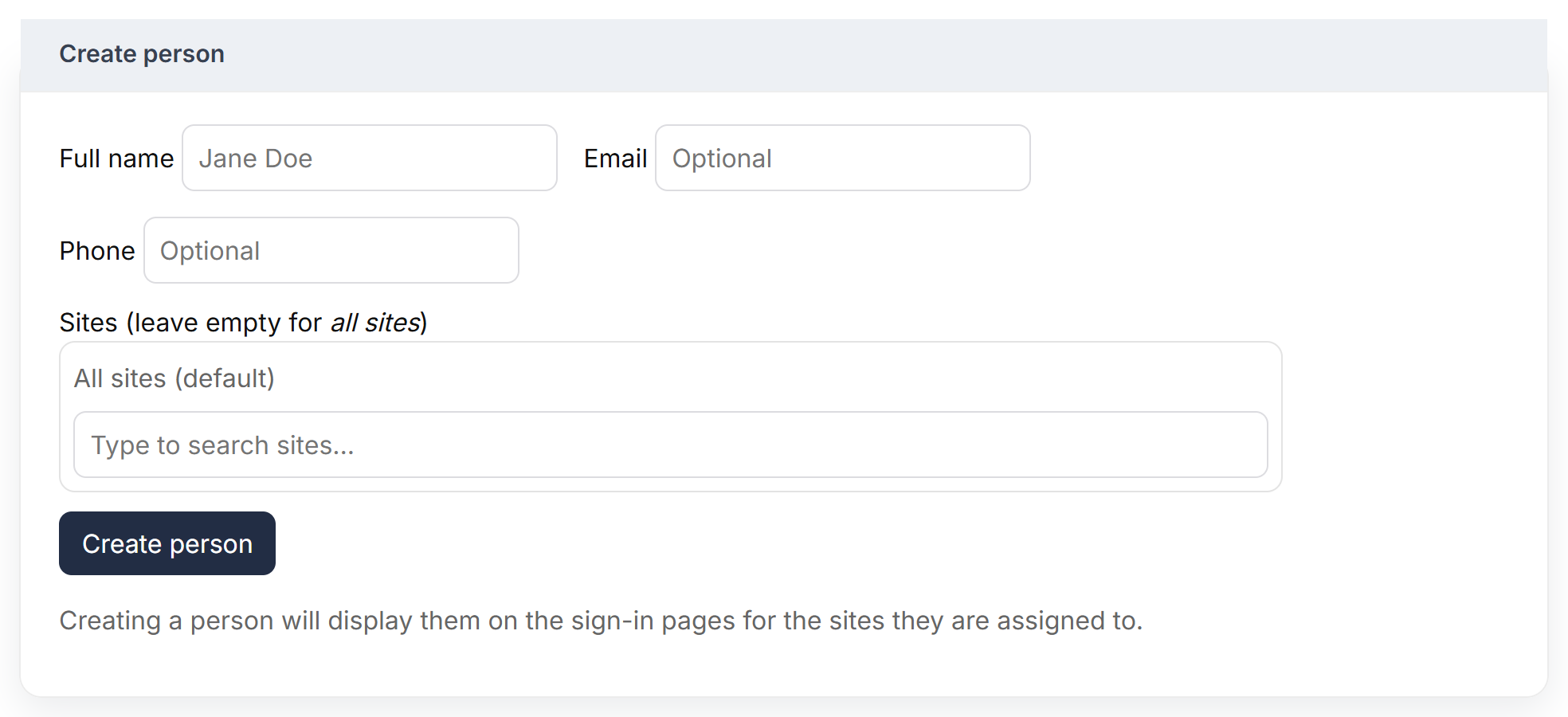
They appear on the sign-in screen for their sites straight away.
Edit a person
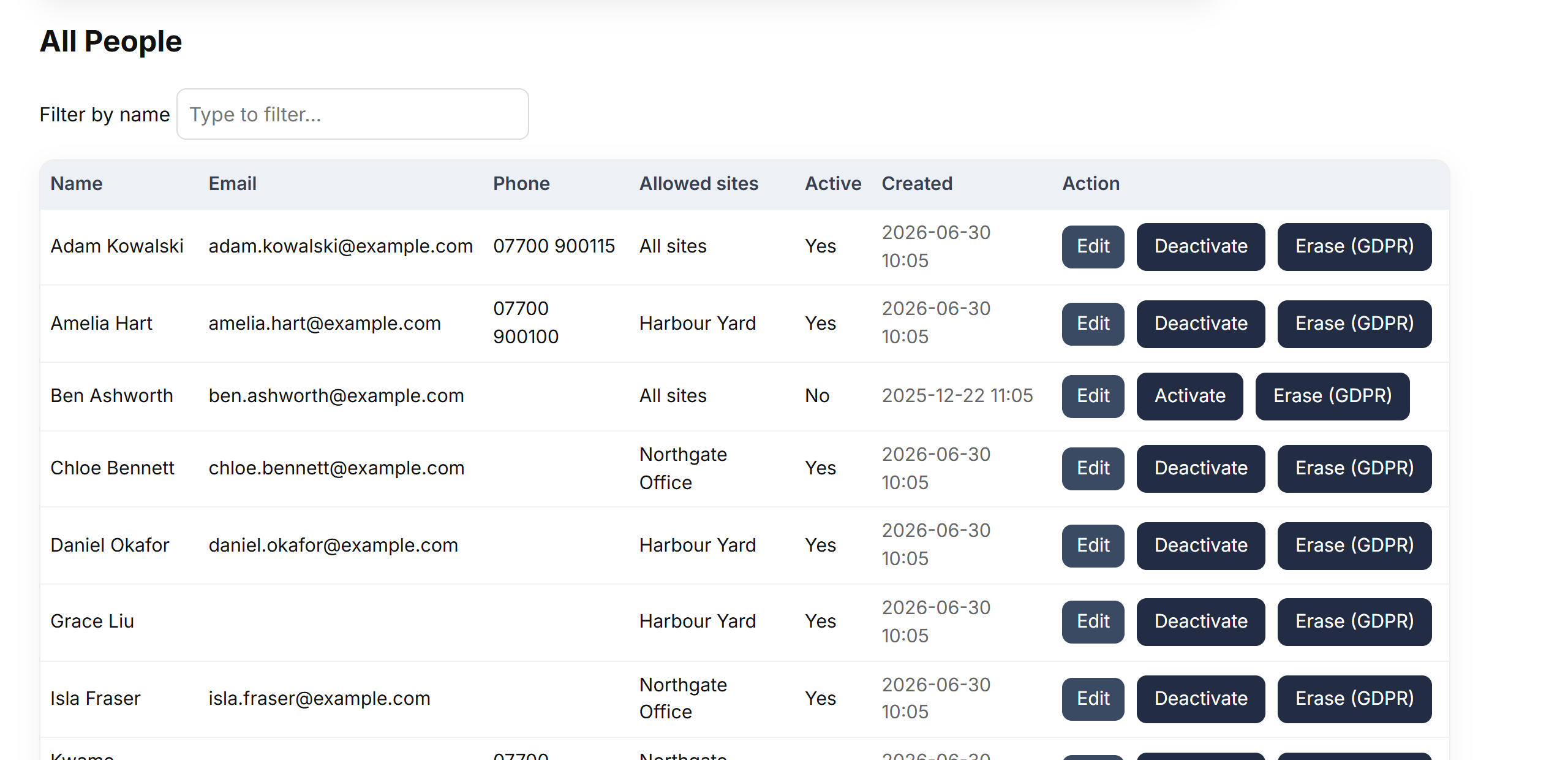
- In All People, find them (use Filter by name if the list is long).
- Click Edit, change what you need — including Allowed sites and Active — and click Save changes.
When someone leaves
Click Deactivate. They disappear from the sign-in screens, but their past sign-ins stay in your logs and reports. Click Activate to bring them back.
Erase a person's personal data
If someone asks you to delete their data, click Erase (GDPR) and confirm.
Good to know
- Each email address can only belong to one person.
- A person with no sites chosen appears on every site's sign-in screen and in every site's delivery list.
- People are not logins. Staff don't need an account to sign in on the tablet — they just tap their name.