
Staff sign in and out
Steps
- Find your name under Staff sign in/out.
- Tap it.
- Check the message — "Confirm sign in for …" or "Confirm sign out for …" — and tap Confirm.
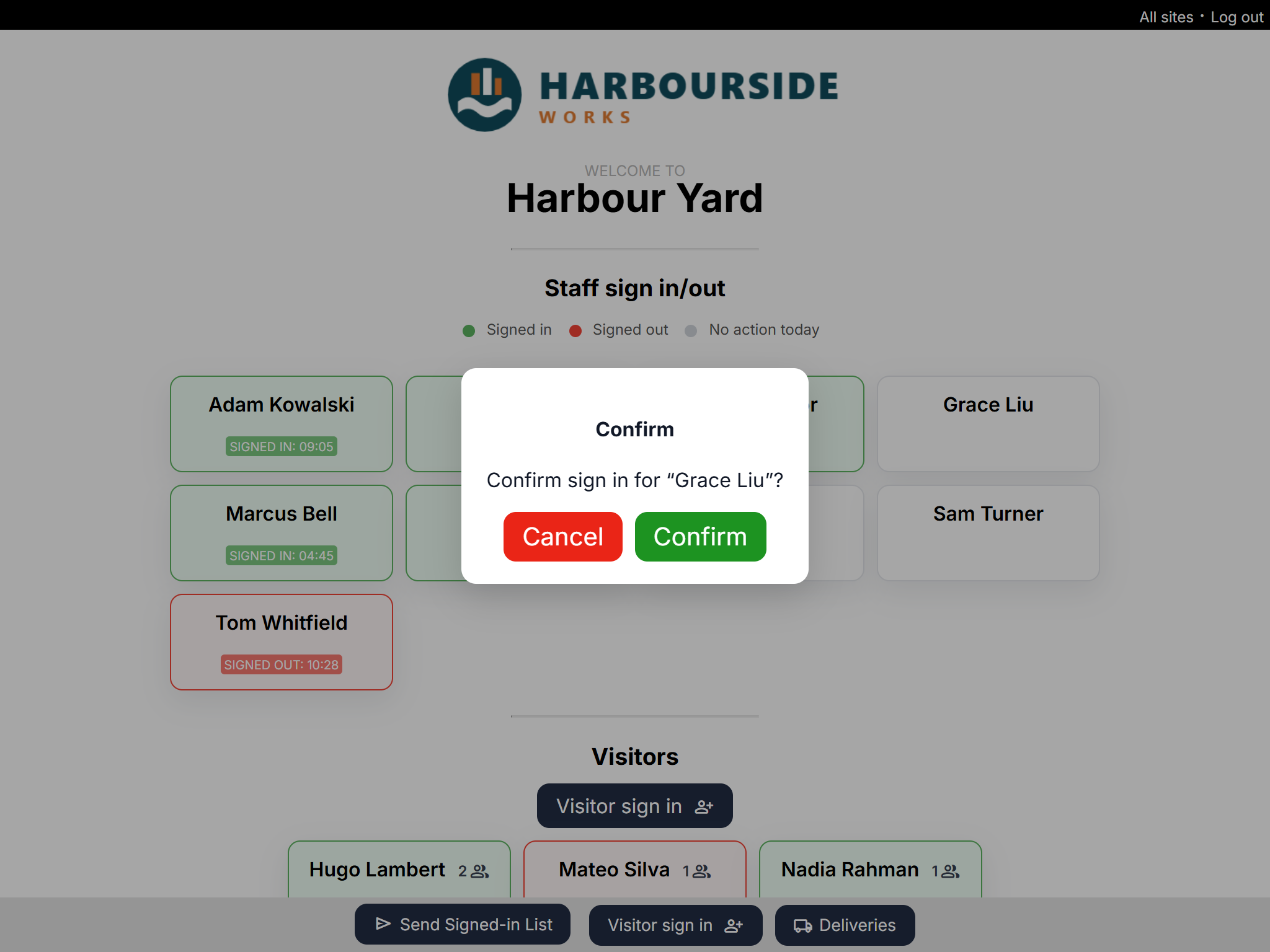
You'll see "Saved: your name is now signed in." and your tile turns green with the time.
What the colours mean
| Colour | Meaning |
|---|---|
| Green — Signed in | You're on site. The tile shows the time you signed in. |
| Red — Signed out | You've left. The tile shows the time you signed out. |
| Grey — No action today | You haven't signed in or out here recently, or you were signed out automatically. |
Moving between sites
If you sign in at a second site while you're still signed in at the first, Clavarius signs you out of the first one automatically. The message tells you how many other sites you were signed out of.
Good to know
- Tapped the wrong name? Tap Cancel in the confirmation. If you already confirmed, tap the tile again to reverse it.
- Your name isn't there? Ask an admin to check you're active and allowed to use this site.
- Forgot to sign out? You'll be signed out automatically — see Automatic sign-out and night shifts.