
Send the Signed-in List (roll-call)
During a fire drill or an evacuation, anyone at the sign-in screen can email a list of who is signed in to the contacts your admin has chosen.
Before you start
An admin must add up to five recipients in Admin → Settings → Signed-in list emails (how). Until then, sending fails with "No alert recipients configured."
Steps
- Tap Send Signed-in List in the bar at the bottom of the sign-in screen.
- Choose:
- Send — this site only, or
- Send all sites — one email covering every active site.
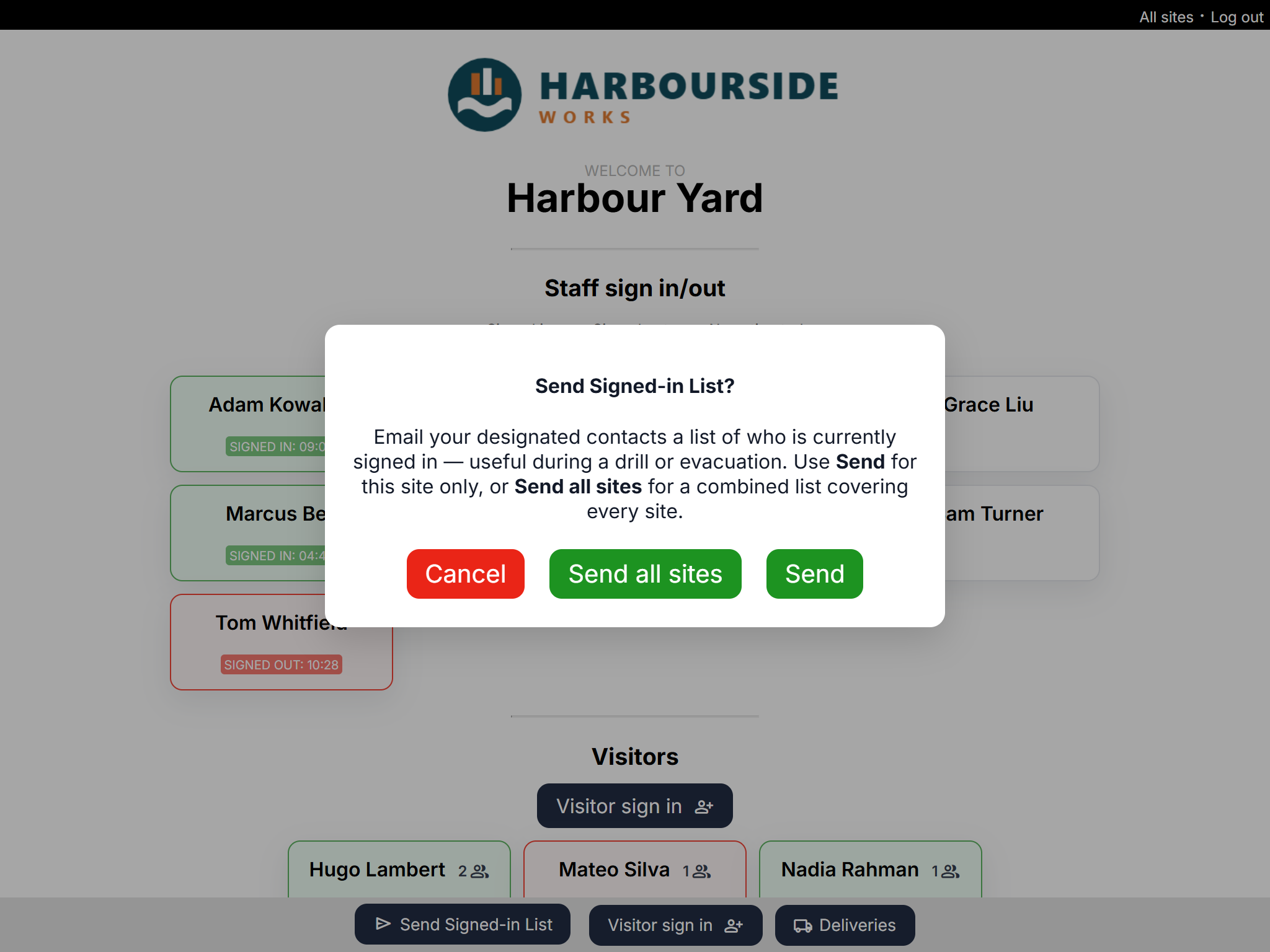
You'll see "Signed in list sent." when it's on its way.
What's in the email
- The site (or every site), with the date and time.
- Staff signed in: names.
- Visitors signed in: name, company, group size and phone number.
The subject starts with REQUESTED: Signed In List so it's easy to spot.
Good to know
- "Signed in" means the person signed in and hasn't signed out yet — or been signed out automatically.
- Practise before you need it: send a list during your next fire drill and check it arrives.
- For a list that's always up to date on a phone or screen, use a view-only link.
- Every send is recorded in Admin → Email Log.
- There's a limit on how many emails an organisation can send in a short time. If you see "Email limit reached", try again shortly.