
Set up a sign-in tablet
Each site has its own sign-in screen: a web page that runs on any tablet with a modern browser. There's nothing to install.
Before you start
- Add the site in Admin → Sites (how).
- Create an access account in Admin → Users (how). Use this on tablets — never your admin login.
Steps
- On the tablet, open your organisation's address, for example
yourcompany.clavarius.io. - Sign in with the access account's email and password.
- You'll see a tile for each active site. Tap the site this tablet is for.
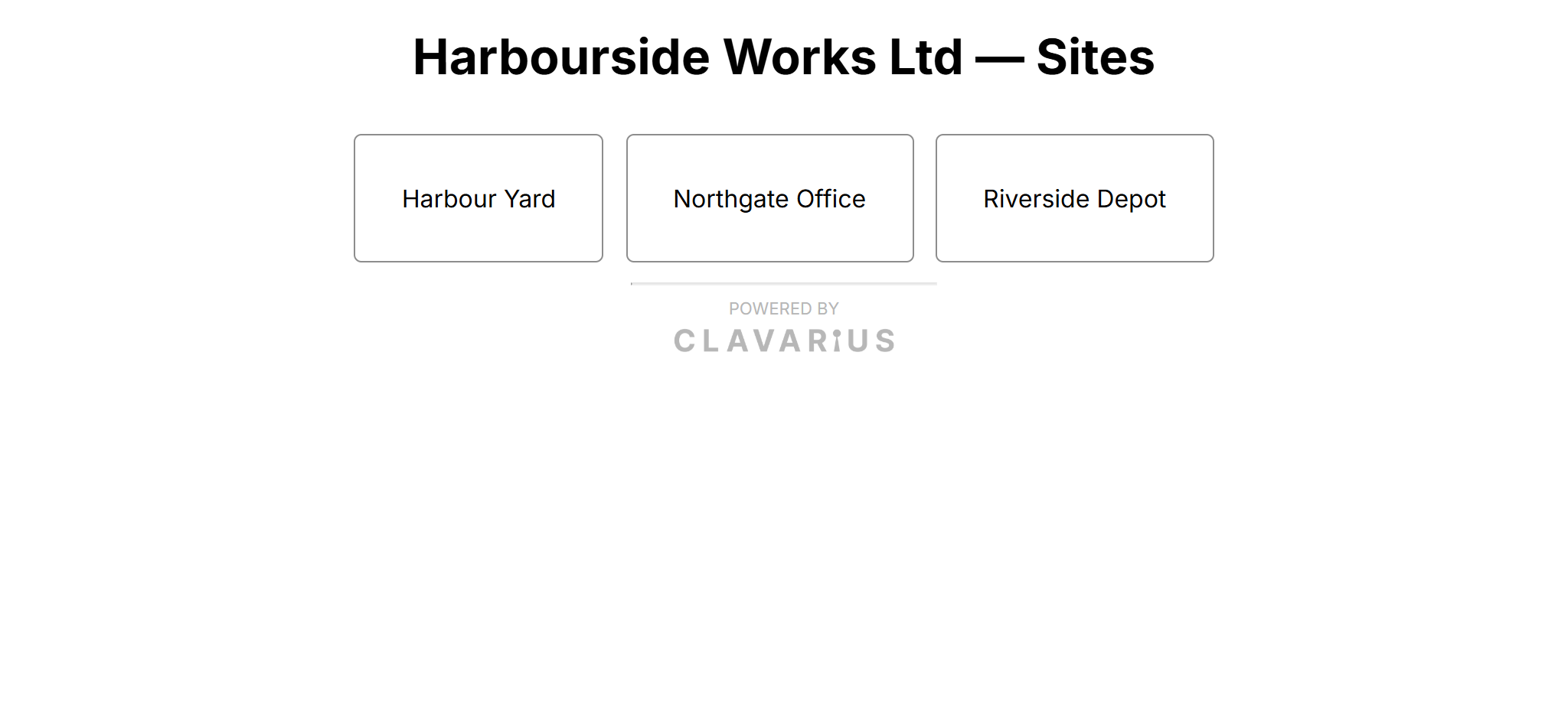
The list of sites - Bookmark the page or add it to the home screen, so it opens straight to this site.
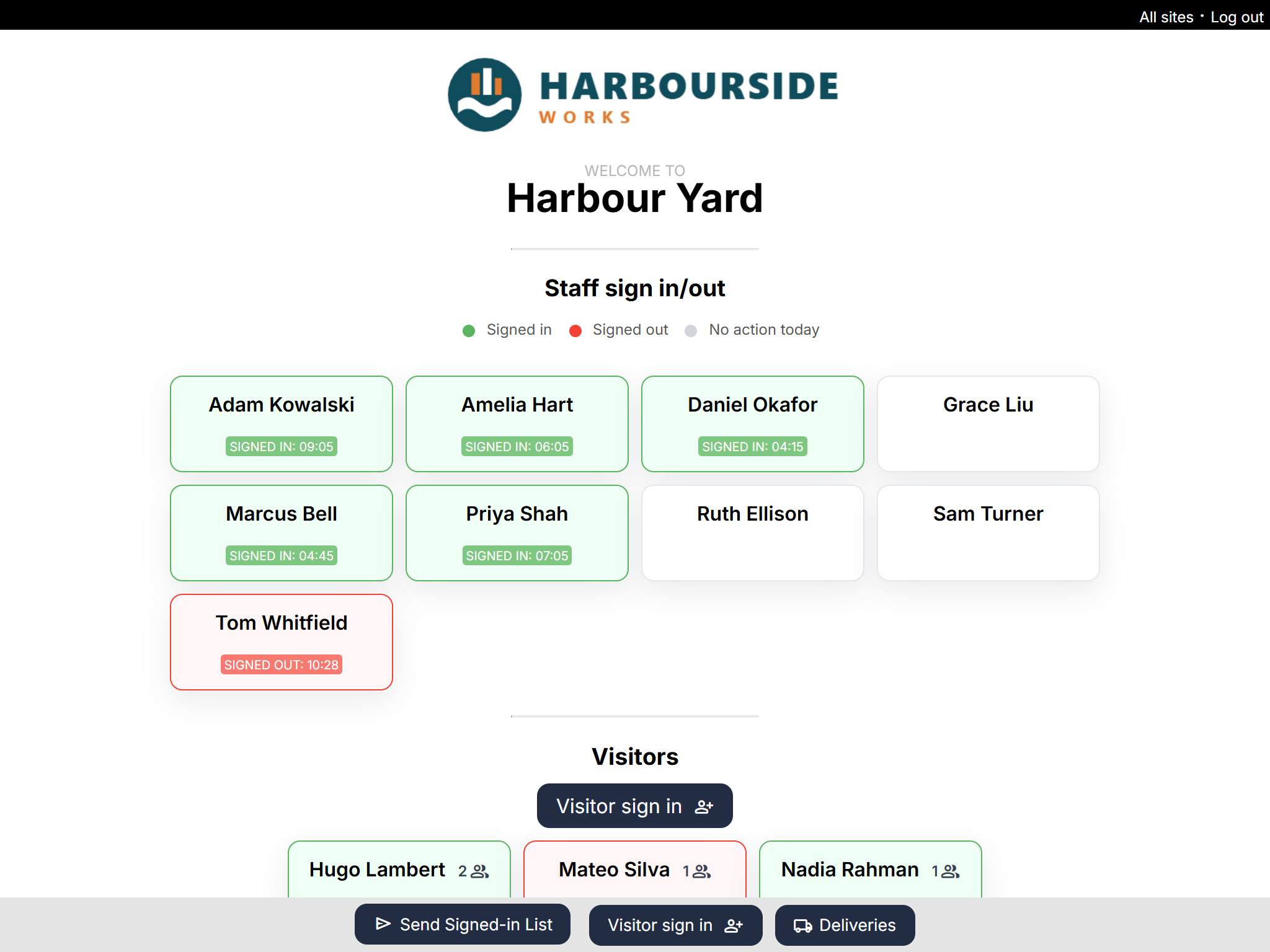
What's on the sign-in screen
- Your logo, Welcome to and the site name.
- Staff sign in/out: a tile for every person who can use this site. Green is signed in, red is signed out, grey is no action today.
- Visitors: recent visitors at this site, and the Visitor sign in button.
- A bar along the bottom with Send Signed-in List, Visitor sign in and, if you've turned them on, Deliveries.
Good to know
- The page refreshes itself every few minutes and again just after midnight, so it never goes stale.
- People who forget to sign out are signed out automatically, at midnight or after a set time — see Automatic sign-out and night shifts.
- One access account can stay signed in on up to 50 tablets.
- If a site is deactivated or archived, its sign-in screen shows "Site not found" and stops taking sign-ins.
- Use the tablet's kiosk or "guided access" mode to stop people wandering off the page.
- Keep the tablet on charge, and stop it going to sleep in the tablet's display settings.
- From the sign-in screen, All sites takes you back to the list of sites.