
Import and export people
Use a spreadsheet to add your whole team in one go, or to change lots of people at once. You'll see exactly what will change before anything is saved.
Before you start
- Add your sites first (Admin → Sites), so you can put people on the right sites.
- Your spreadsheet needs to be saved as a CSV file. In Excel, use File → Save As and choose CSV UTF-8. Google Sheets: File → Download → Comma-separated values.
Import people
- Go to Admin → People.
- In the Bulk edit box, click Import CSV.
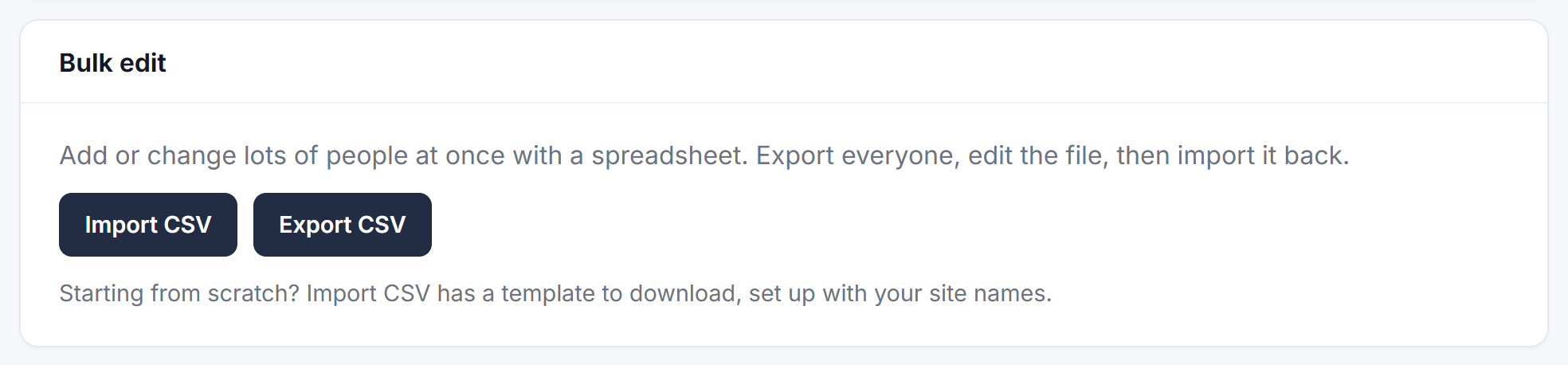
The Bulk edit box on the People tab - If you're starting from scratch, download the template. It already uses your own site names.
- Fill in one person per row:
- full_name (required). Separate first_name and last_name columns work too.
- email and phone (optional).
- sites: site names separated by
;. Leave it blank, or write All, for all sites. - active (optional): yes or no.
- Click Choose file, pick your CSV, and click Check file.
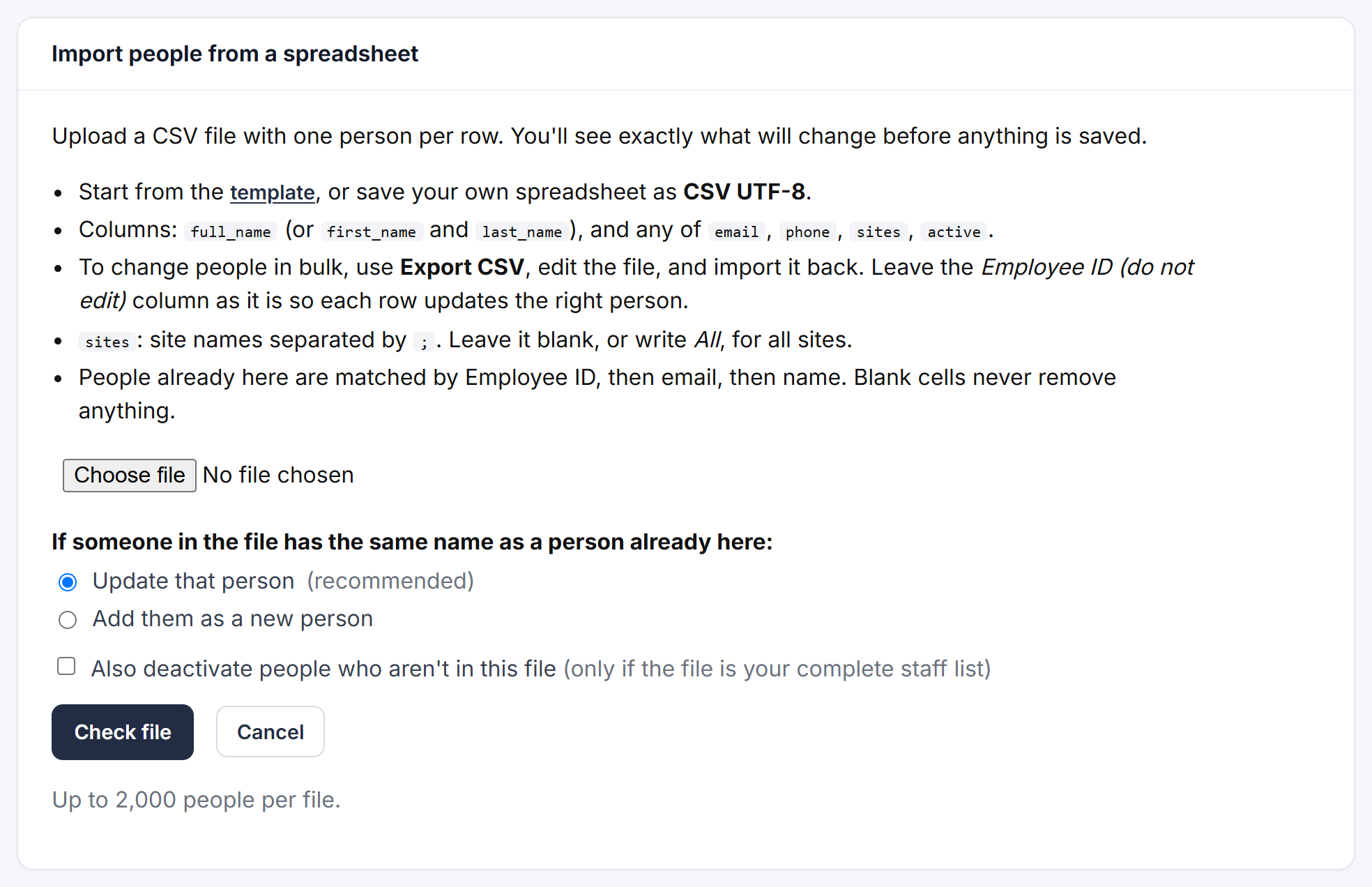
The import screen - Check the preview. Every line is marked:
- New: this person will be added.
- Update: someone already here will be changed. It says what changes, for example phone, sites.
- No change: they're already up to date.
- Problem: this line will be skipped, with the reason, such as Unknown site or an email that isn't valid.
- Untick any lines you don't want, then click Import and confirm.
Change people in bulk
- In the Bulk edit box, click Export CSV. You get a file with everyone on the People tab.
- Open it, make your changes (names, emails, phones, sites, active) and save it as CSV.
- Import it as above. The preview shows only what you changed.
How people are matched
When you import, each row is matched to someone already here by:
- the Employee ID from an export, then
- their email, then
- their exact name.
On the import screen you choose what happens when someone in the file has the same name as a person already here: Update that person (recommended) or Add them as a new person. The preview says matched by name wherever that happened, so you can check it.
Good to know
- Blank cells never remove anything. To clear someone's phone number, edit them on the People tab.
- If the same name appears twice in one file with no email, both lines are flagged. Give each person an email if they really are two people.
- Also deactivate people who aren't in this file is off unless you tick it. Use it only when your file is your complete staff list. The preview names everyone who would be deactivated, and they can be activated again later.
- Up to 2,000 people per file.
- Leavers, site restrictions and erasing data work the same as for people you add by hand. See Add and edit people.