
Lone-worker alerts
Lone-worker alerts email the people you choose when someone has been the only person signed in at a site for longer than you set. Anyone on the alert list can confirm they've checked on them with one tap, and everyone gets an all-clear when the person is no longer alone.
Alerts are off until you turn them on.
Before you start
- Make sure people sign in and out on the tablet. Alerts use the same sign-ins as the Signed-in List.
- For check-ins, the person working alone needs an email address on the People tab.
Turn on lone-worker alerts
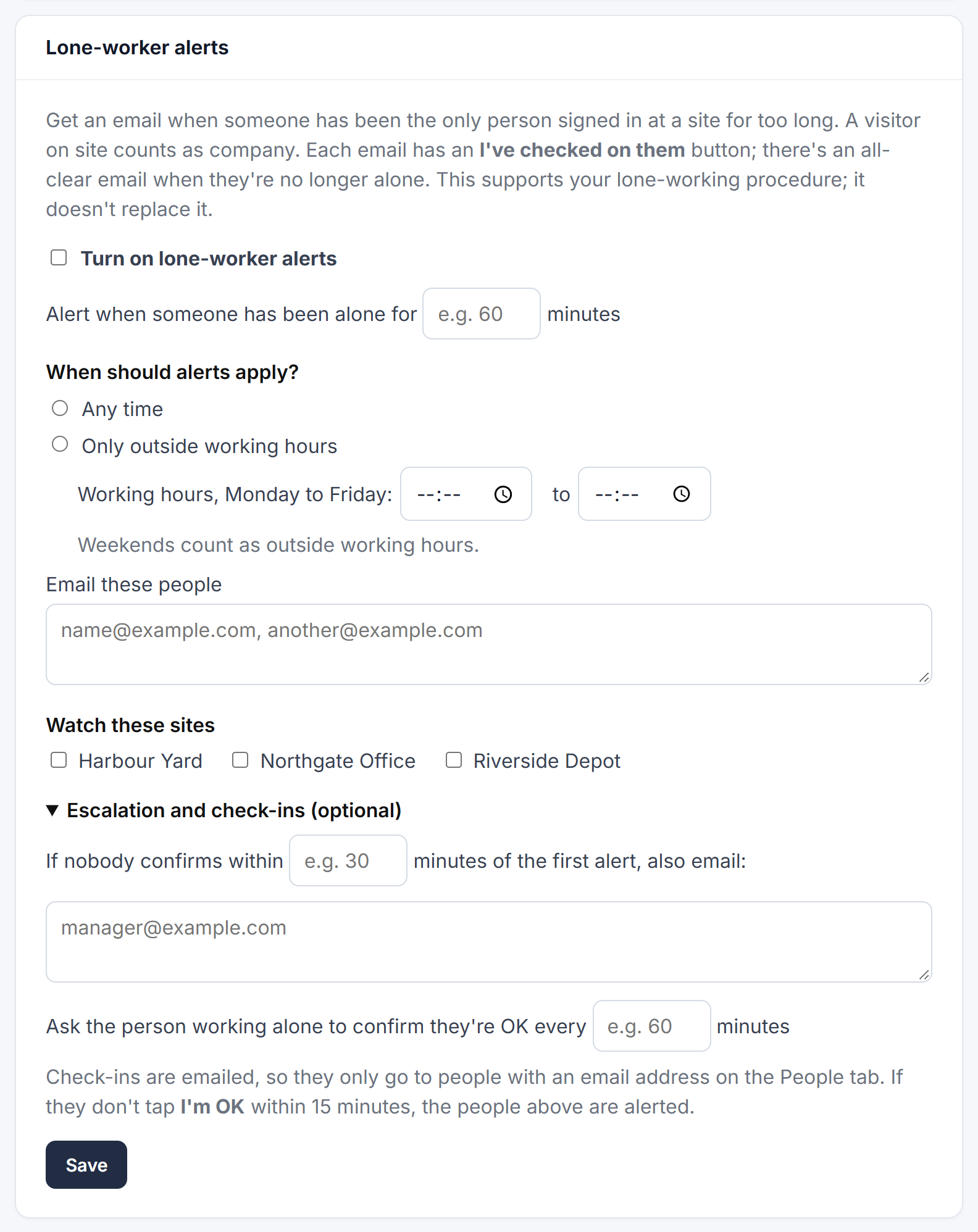
- Go to Admin → Safety.
- Under Lone-worker alerts, tick Turn on lone-worker alerts.
- Enter how many minutes alone should trigger an alert, for example 60.
- Choose When should alerts apply?:
- Any time, or
- Only outside working hours, then enter your working hours (Monday to Friday). Weekends count as outside working hours.
- Under Email these people, enter one or more email addresses, separated by commas.
- Under Watch these sites, tick the sites to watch.
- Click Save.
What happens
- When someone has been alone for the time you set, everyone on the list gets an email saying who, where and since when.
- The email has an I've checked on them button. It works on a phone, with no sign-in. Once anyone taps it, the alerts stop and everyone else on the list is told someone has checked.
- If nobody taps it, the alert is sent again a couple of times.
- When the person is no longer alone, because someone else signs in or they sign out, everyone who was alerted gets an all clear email.
Someone counts as alone only if nobody else is signed in at the site, staff or visitor.
Escalation (optional)
Open Escalation and check-ins (optional) and enter a number of minutes and one or more email addresses. If nobody has tapped I've checked on them that long after the first alert, those people are emailed too. Fill in both, or leave both blank.
Check-ins (optional)
Enter how often to ask the person working alone to confirm they're OK, for example every 60 minutes.
- They get an email with an I'm OK button.
- If they don't tap it within 15 minutes, everyone on the alert list is told they missed a check-in, and the alerts start again.
- Check-ins carry on while they're alone. Each new email replaces the previous one's button.
- If they tap I'm OK after an alert has gone out, everyone who was alerted is told they're OK.
Good to know
- Recent alerts at the bottom of the Lone-worker alerts box shows what happened each time.
- Alert emails appear in Admin → Logs → Email Log as Lone-worker alert.
- To see past patterns of lone working, use the Lone Worker report in Reports.
- To stop all alerts, untick Turn on lone-worker alerts and click Save. Anyone being watched gets an email saying the alerts have stopped.