
The Overview page
When you go to Admin, you land on Overview. It answers the questions you have most often without opening any other page. Nothing on it changes your data.
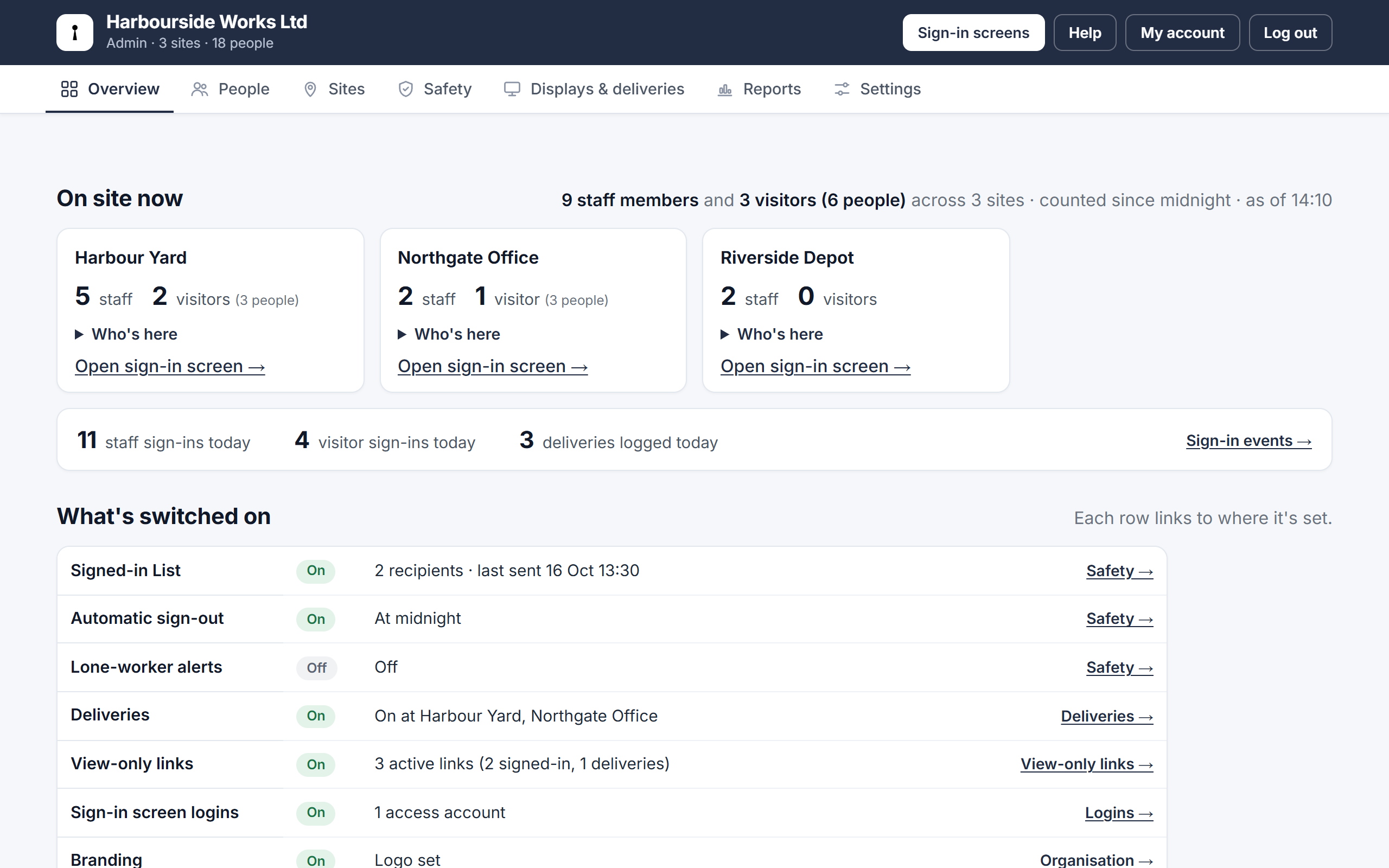
On site now
One card per active site, showing how many staff and visitors are signed in at this moment. Click Who's here to see the names, and Open sign-in screen to go to that site's screen.
- Who counts as "on site" follows your automatic sign-out setting: everyone since midnight, or everyone in the last few hours. The line at the top says which.
- Below the cards: how many staff and visitors have signed in today, and how many deliveries have been recorded.
Things to look at
If something needs attention, it appears above the cards: a trial that is ending or a payment that failed, all of your plan's sites in use, or someone who is working alone right now.
What's switched on
A table of your settings, one row each, with a pill showing its state and a link to where it is set:
| Row | What it shows |
|---|---|
| Signed-in List | How many recipients, and when the list was last sent |
| Automatic sign-out | At midnight, or after a set number of hours |
| Lone-worker alerts | Off, or the minutes, hours and sites being watched |
| Deliveries | Off, or which sites can record deliveries |
| View-only links | How many links are active |
| Sign-in screen logins | How many access accounts your tablets can use |
| Branding | Whether a logo is set |
| Plan | Your plan, sites used, and the renewal or trial date |
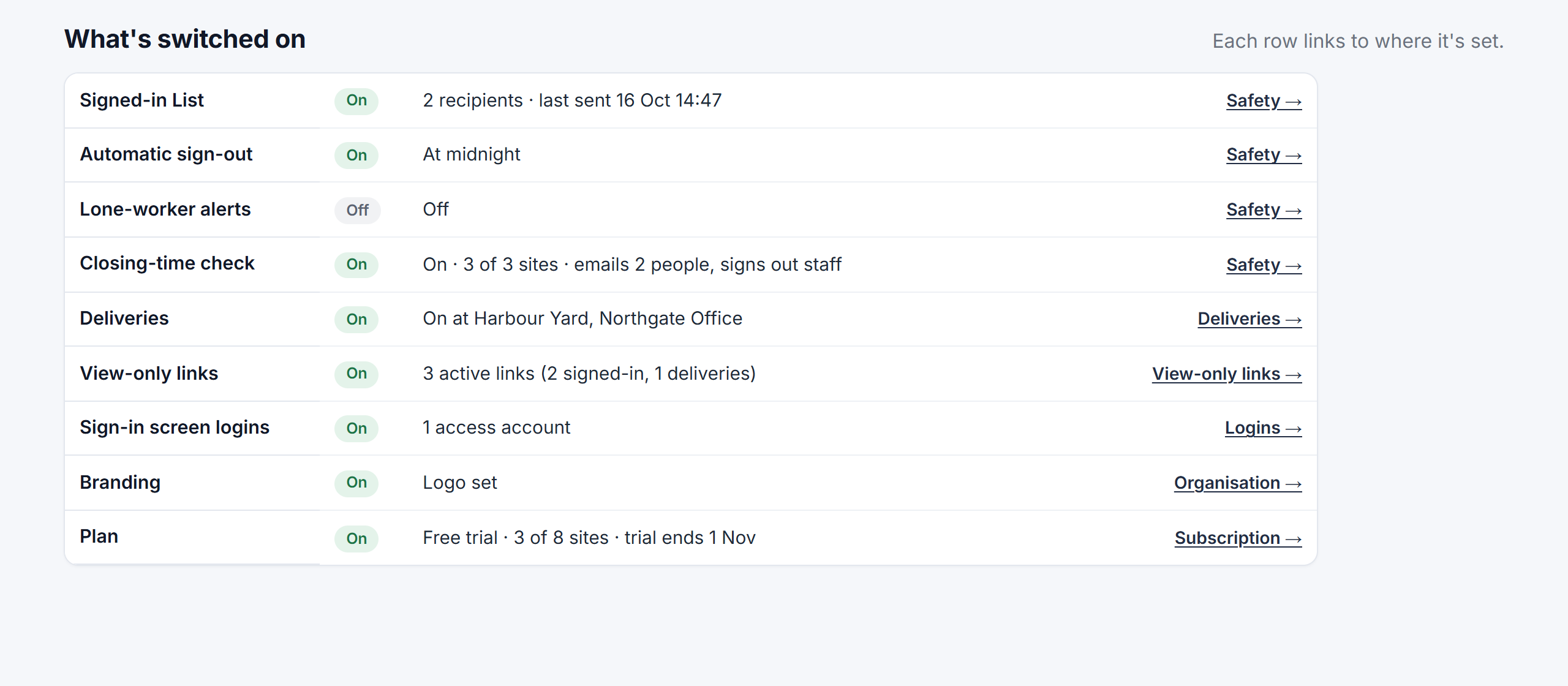
An amber Check pill means something is half set up — for example lone-worker alerts turned on with nobody to email, or deliveries on with no address for company parcels. The note under it says what to do.
Good to know
- New organisations see the Get set up checklist here first; see the first-day checklist.
- The admin pages are grouped into seven tabs: Overview, People, Sites, Safety, Displays & deliveries, Reports and Settings. Pages with several parts show a second row of tabs underneath.