
Choose who gets alert emails
Every alert email uses the same box to choose who it goes to: on Admin → Safety, the Signed-in List, lone-worker alerts and their escalation, and the closing-time check; on Visitors & deliveries → Visitors, who to tell when a visitor isn't sure who they're visiting; and on a person's People record, who gets copies of their visitor and delivery emails. You can mix people from your People list with any email address.
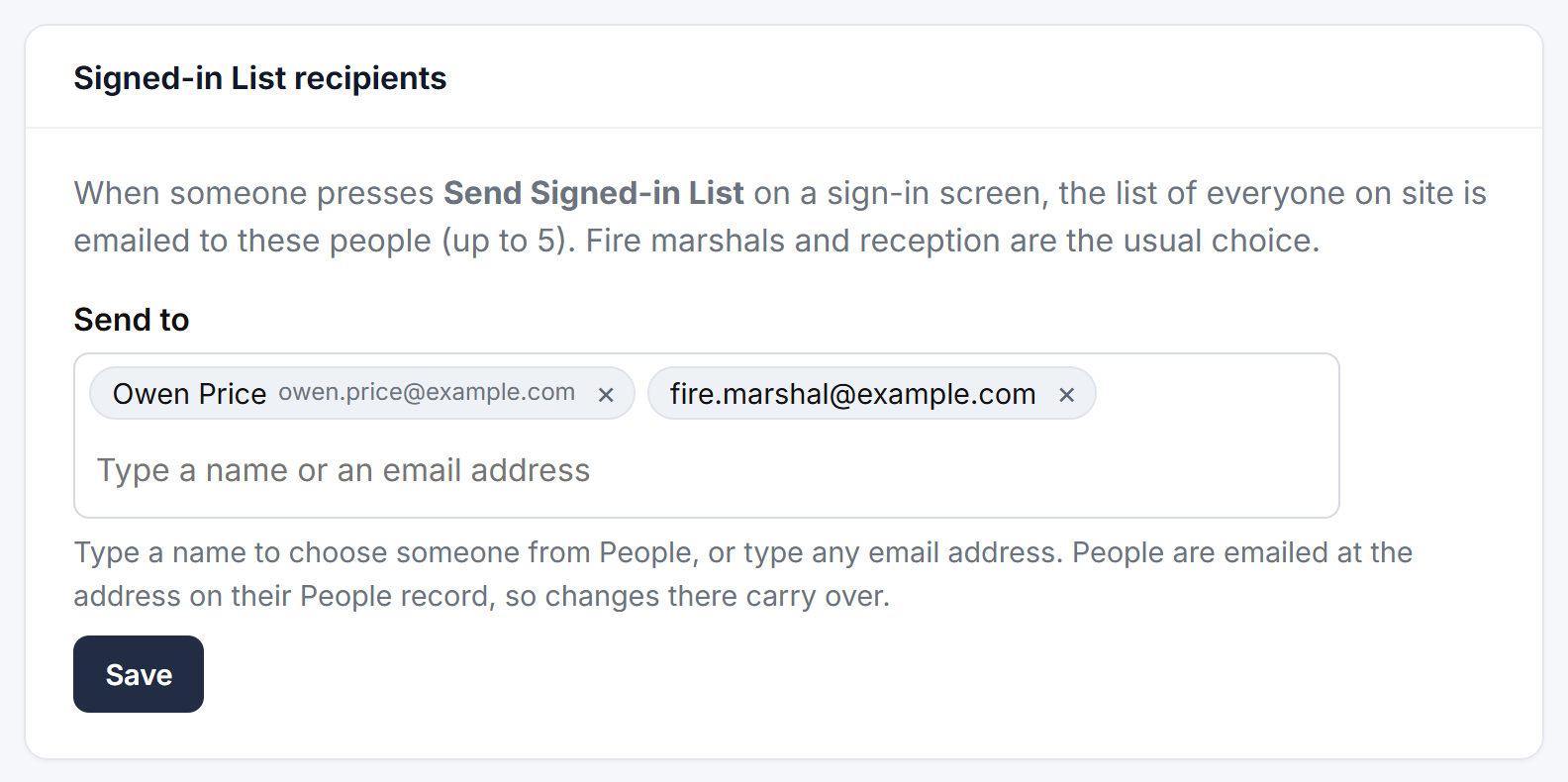
Add someone from People
- Click in the box and start typing their name or email address.
- Pick them from the list, or press Enter to pick the highlighted one.
They appear with their name and email address. Only active people with an email address on the People tab are offered.
Add an email address
Type the address, then press Enter or type a comma. You can also paste several addresses at once, separated by commas.
Remove someone
Click the × next to their name or address, then click Save.
Good to know
- People you pick are emailed at the address on their People record. If you change their email on the People tab, alerts go to the new address. You don't need to update the alert lists.
- If someone is made inactive or removed from People, they stop getting alerts.
- Typed addresses don't need to belong to anyone in People, so you can use a shared mailbox such as reception or security.
- Each list has a limit: up to 5 for the Signed-in List, visitor and delegate lists, and up to 10 for the others.
- Click Save in the same box after making changes.