
Tell staff when their visitor arrives
When a visitor signs in, Clavarius can ask who they're here to see and email that person straight away. You can also show your guest Wi-Fi details to visitors once they've signed in.
Both are off until you turn them on, and you choose for each site.
Before you start
- The people visitors can choose must be on the People tab, active, with an email address, and allowed at that site.
- Can receive visitors must be ticked on their People record. It's ticked for everyone to start with. Untick it for anyone visitors should never choose, such as a tablet account or someone who's left.
Ask visitors who they're visiting
- Go to Admin → Visitors & deliveries → Visitors.
- For each site, under Ask visitors who they're visiting, choose:
- Off: visitors aren't asked (the default).
- Optional: visitors can choose someone, or leave it blank if they're not sure.
- Required: visitors must choose someone before they can sign in.
- For Optional, you can choose who to email when a visitor isn't sure, for example reception. See Choose who gets alert emails. Leave it blank to email nobody.
- Click Save visitor settings.
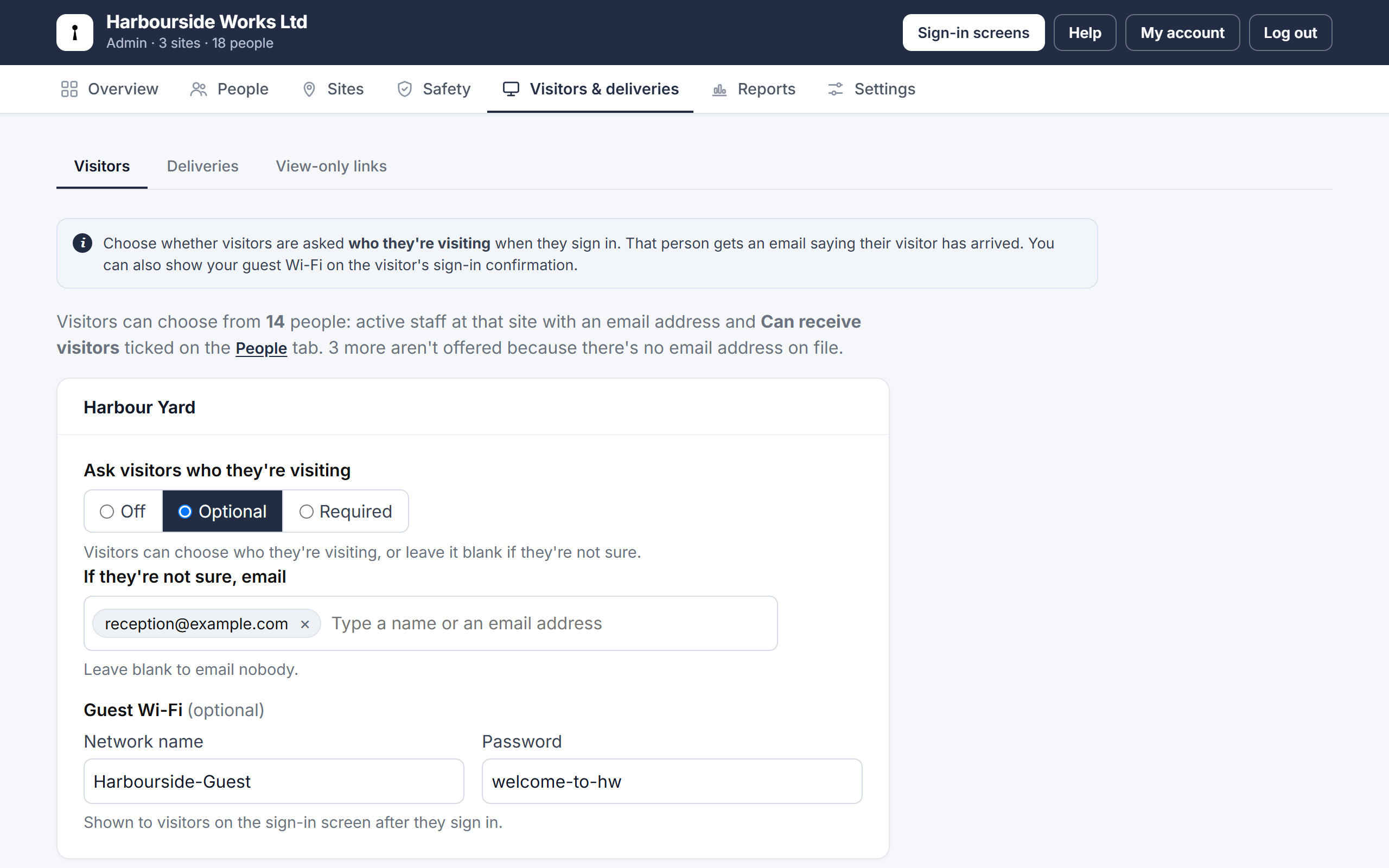
The page tells you how many people visitors can choose from, and how many are left out because they have no email address.
What happens when a visitor signs in
- The visitor starts typing a name under Who are you visiting? and picks from the list. Only names are shown on the tablet, never email addresses.
- The person they chose gets an email saying their visitor has arrived, with the time and their company.
- The visitor sees You're signed in with "We've let name know you're here", and the guest Wi-Fi if you've set it.
- If a visitor signs out and back in on the same day, the same person is told again.
See Sign visitors in and out for what visitors see.
Show your guest Wi-Fi
On the same page, enter the Network name and, if there is one, the Password for each site, then click Save visitor settings. Visitors see them on the screen straight after signing in. Leave both blank to show nothing.
Let someone else get a person's emails
An assistant or deputy can get a person's visitor and delivery emails too:
- Go to Admin → People and click Edit next to the person.
- Under Also send their visitor and delivery emails to, choose people or type email addresses (up to 5).
- Click Save changes.
Good to know
- Arrival emails appear in Admin → Reports → Emails sent as Visitor arrived.
- Who each visitor came to see is shown in Sign-in events and in the Signed-in List.
- The Overview tab shows which sites ask visitors who they're visiting.
- If the email can't be sent, the visitor is asked to let the person know they're here.