
Closing-time check
The closing-time check looks at each site when it closes. If anyone is still signed in, it emails the people you choose a list of who's there. It can also sign them out, so the sign-in screens and the Signed-in List start the next day clear.
The check is off until you turn it on.
Before you start
- You need at least one site. Times are in each site's time zone.
- Decide who should hear about it, for example the person who locks up or your security contact.
Turn on the closing-time check
- Go to Admin → Safety.
- Under Closing-time check, tick Turn on the closing-time check.
- Under Closing times, enter a time for each site and day. Leave a day blank for no check that day.
- Every day copies the first time in a row to every day of the week.
- All sites copies a row's times to every site.
- Under If anyone is still signed in, email, choose people or type email addresses. See Choose who gets alert emails.
- Under And sign them out, tick Sign out staff who are still signed in, Sign out visitors who are still signed in, or both. Leave them unticked if you only want the email.
- Click Save.
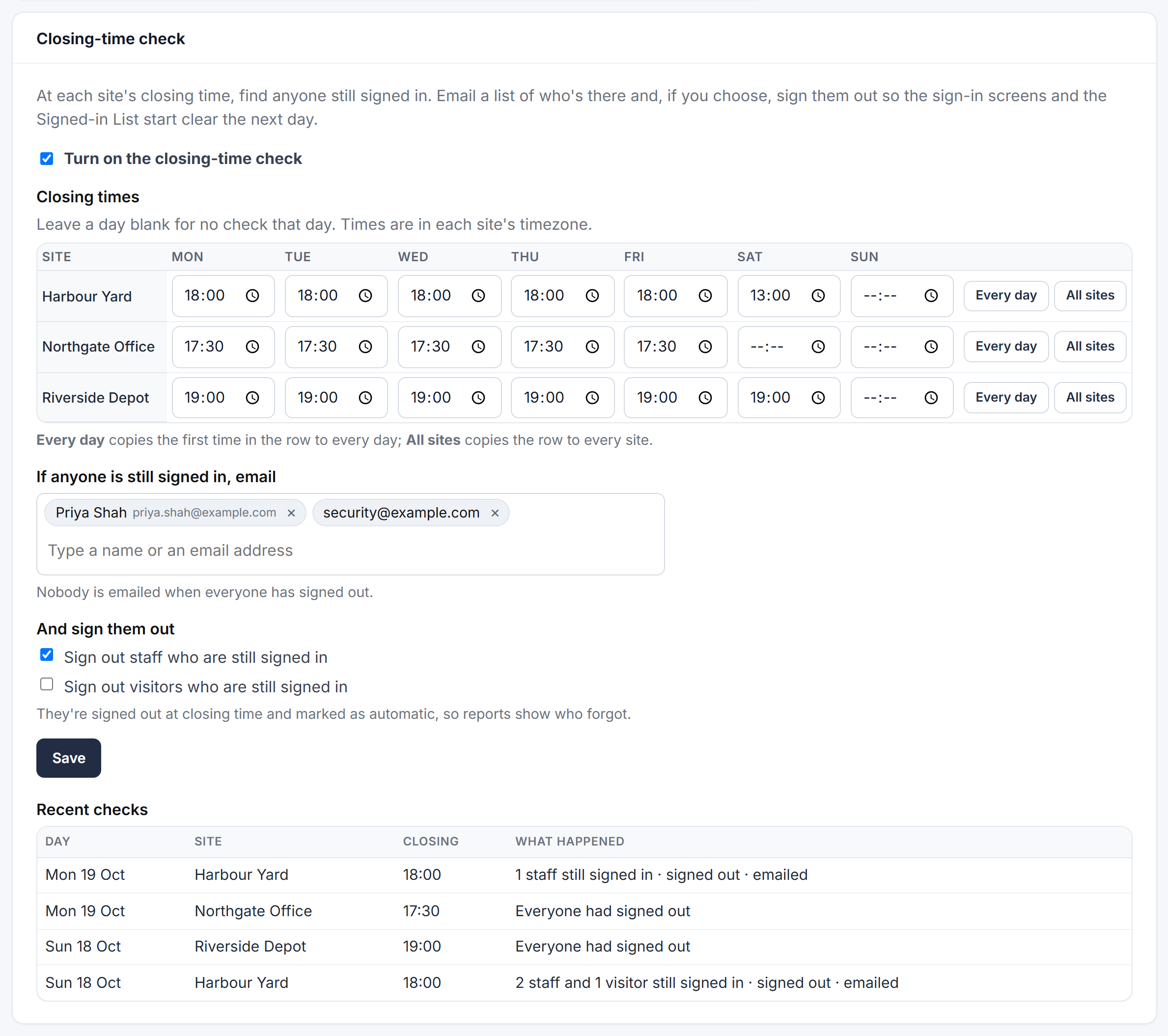
To turn it on you need at least one closing time, and either someone to email or a sign-out option.
What happens at closing time
- Within a few minutes of each site's closing time, Clavarius checks who is still signed in there.
- If anyone is, the people you chose get an email listing each person, whether they're staff or a visitor, and when they signed in. Nobody is emailed if everyone has signed out.
- If you ticked a sign-out option, those people are signed out at that moment. Their sign-out is marked as automatic, so Reports show who forgot.
- The check runs once per site per day.
Good to know
- Recent checks at the bottom of the box shows what happened at each site: whether anyone was still signed in, whether they were signed out, and whether the email was sent.
- Closing-time emails appear in Admin → Reports → Emails sent as Closing-time check.
- Sign-outs made at closing time show as out (closing time) in Sign-in events, and count as forgotten sign-outs in the Forgotten sign-outs and Exceptions reports.
- The closing-time check works alongside automatic sign-out, which still clears anyone left at midnight (or after the hours you set).
- To stop the check, untick Turn on the closing-time check and click Save. Your times are kept.