
Run a live roll-call
When someone sends the Signed-in List from a sign-in screen, Clavarius also starts a live roll-call. Fire marshals open it on their phones and tick everyone off together, so you know quickly who is safe and who is missing.
Start a roll-call
- On the sign-in screen, tap Send Signed-in List, then Send (this site) or Send all sites.
- Everyone on the Signed-in List recipients list gets the email. At the top is a red Open live roll-call button.
The roll-call lists everyone who was signed in at that moment: staff, and each visitor group as one entry (for example "Hugo Lambert +1"). If someone sends the list again for the same site, it joins the roll-call that's already running.
Tick people off
- Tap Open live roll-call in the email. It opens on your phone; no sign-in is needed.
- Enter Your name once, so other marshals can see who checked each person.
- Tap Safe or Not found next to each person. Tap it again to undo.
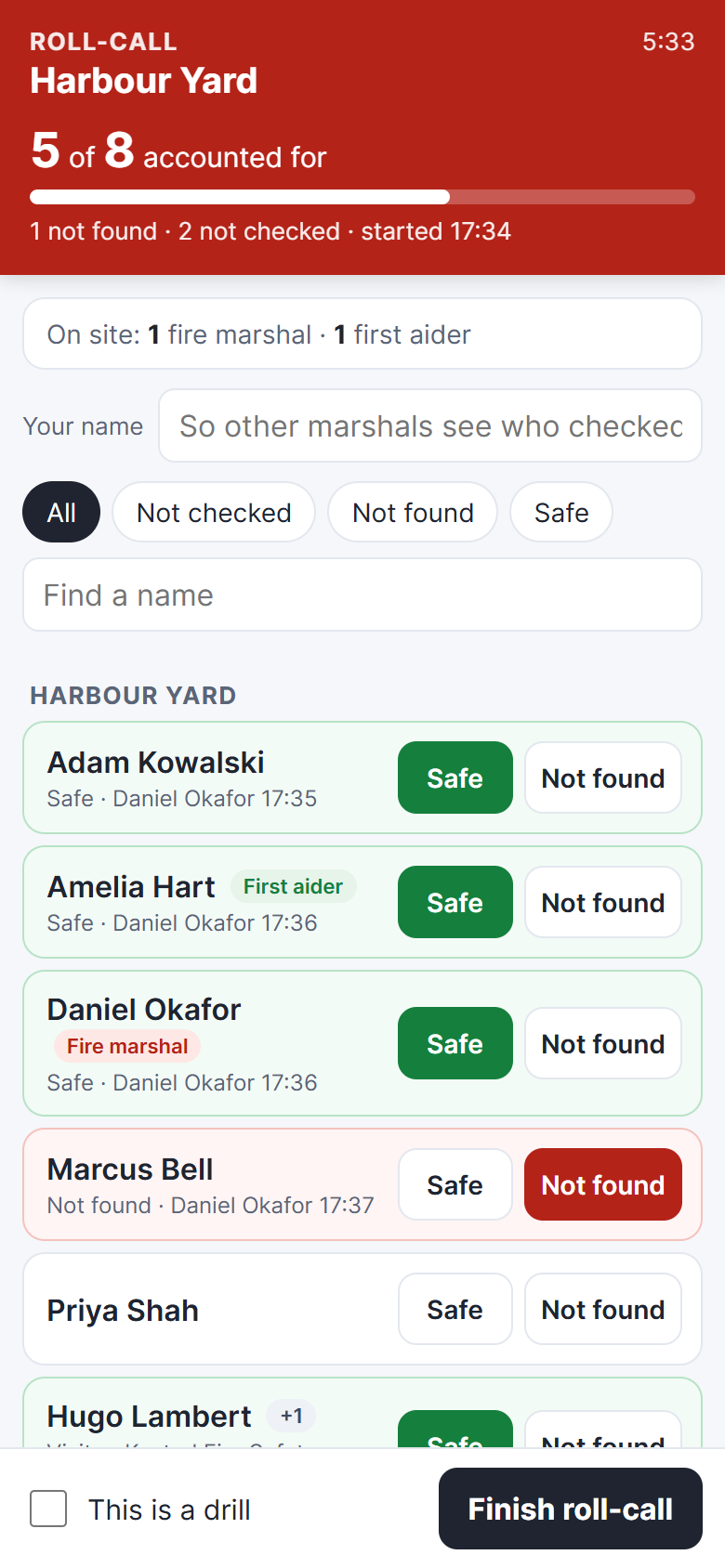
- The red bar at the top shows how many people are accounted for, how many are not found and how many haven't been checked yet, and how long the roll-call has been running.
- Every marshal's phone updates within a few seconds, so you can split the list between you.
- Use Not checked, Not found and Safe to filter the list, or Find a name to search.
- Fire marshals and first aiders are labelled, with a count at the top, for example "1 fire marshal · 1 first aider". Set these on the People tab.
Drills
For a practice evacuation, tick This is a drill at the bottom of the roll-call page, at any time. The page turns amber and the roll-call is recorded as a drill. If nobody ticks it, it's recorded as a real alarm. An admin can change this afterwards.
Finish the roll-call
Tap Finish roll-call when everyone is accounted for (or when you've done all you can). Everyone on the Signed-in List recipients list gets a summary email: whether it was a drill, how long it took, who was not found and who wasn't checked. The page then becomes read-only.
If nobody finishes it, the roll-call closes itself after a few hours and the summary is still sent.
For admins
- While a roll-call is running, a red Roll-call in progress banner appears at the top of Admin → Overview, with an Open live roll-call button.
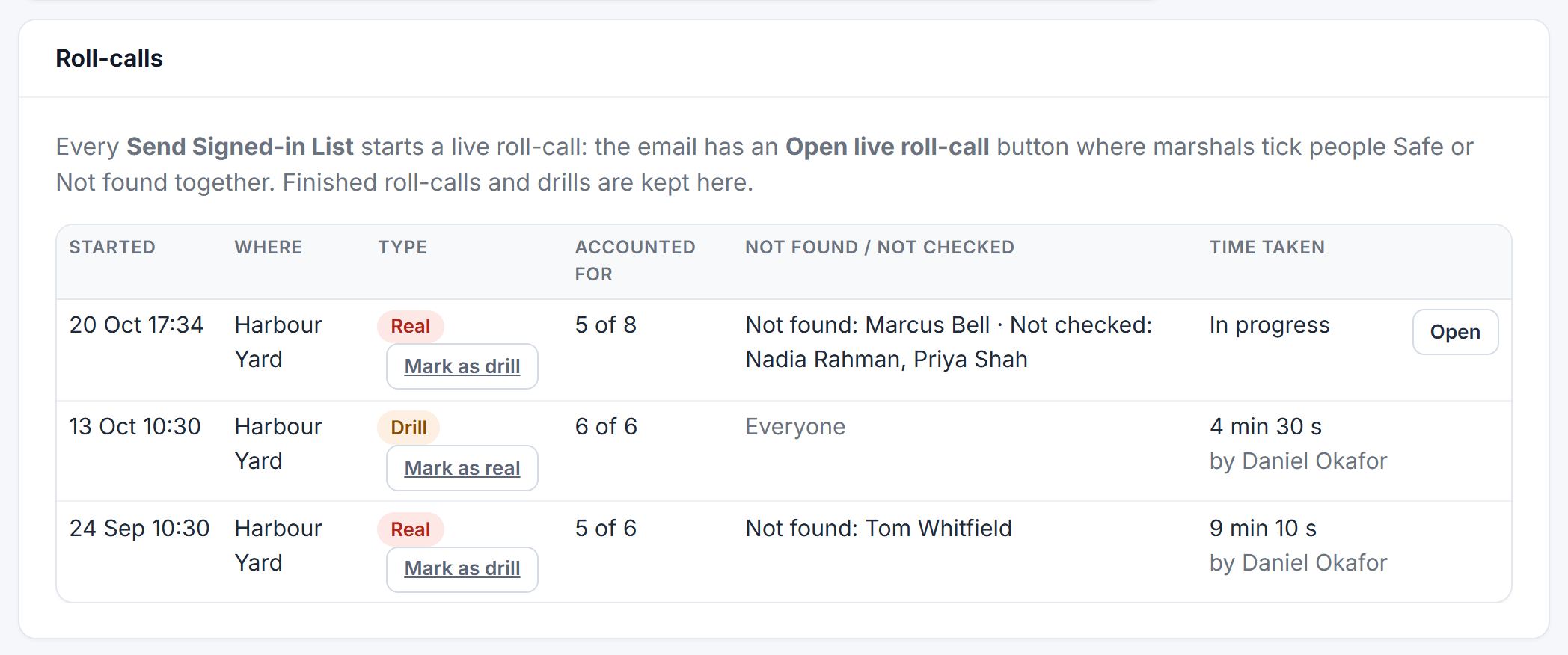
- Admin → Safety → Roll-calls keeps every roll-call: when it started, where, drill or real, how many were accounted for, who was not found or not checked, and how long it took. Use Mark as drill or Mark as real to correct the label.
Good to know
- Roll-call links only work for a day. After that, the record is kept on the Safety tab.
- Summary emails appear in Admin → Reports → Emails sent as Roll-call summary.
- Roll-calls are kept for as long as your history retention setting and are included when you download your data.
- Practise during your next fire drill, so marshals know where the button is before they need it.