
Ask visitors your own questions
Sign-in questions are extra questions on the visitor sign-in form, for example a vehicle registration, the reason for the visit, or "I have my own safety boots". You write them once and choose which sites ask them.
There are none until you add some.
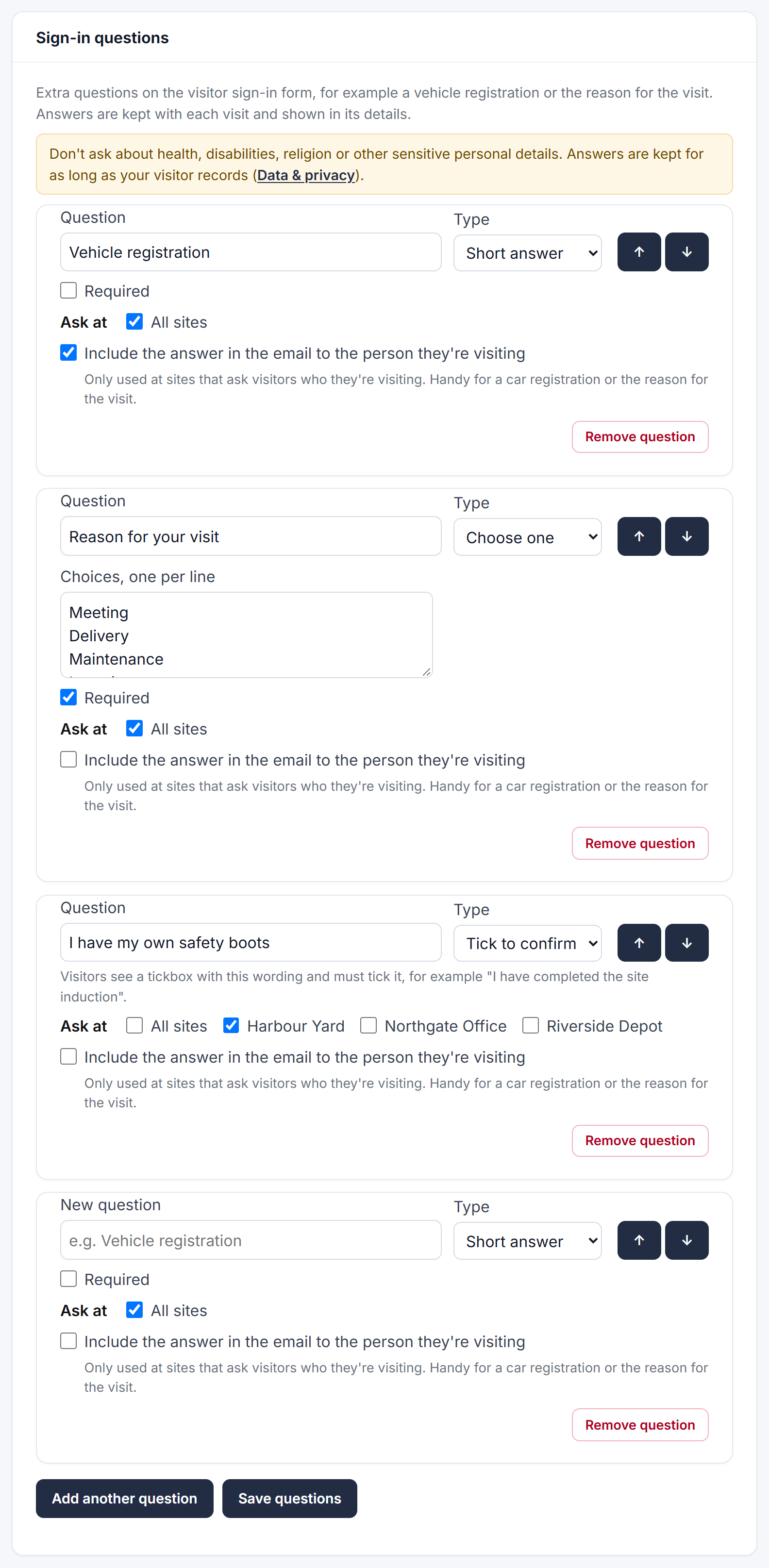
Add a question
- Go to Admin → Visitors & deliveries → Visitors and find Sign-in questions.
- In the New question box, type the question.
- Choose its Type:
- Short answer: a box to type in, for example a vehicle registration.
- Yes / No: two buttons.
- Choose one: up to 8 buttons. Type the choices one per line.
- Tick to confirm: a statement visitors must tick before they can sign in, for example "I have completed the site induction".
- Tick Required if visitors must answer it. A Tick to confirm question always has to be ticked.
- Under Ask at, keep All sites, or untick it and choose the sites.
- Tick Include the answer in the email to the person they're visiting if the host should see it, for example a car registration for parking. This only applies at sites that ask visitors who they're visiting.
- Click Save questions.
Click Add another question for more, and use the ↑ and ↓ buttons to change the order visitors see them in.
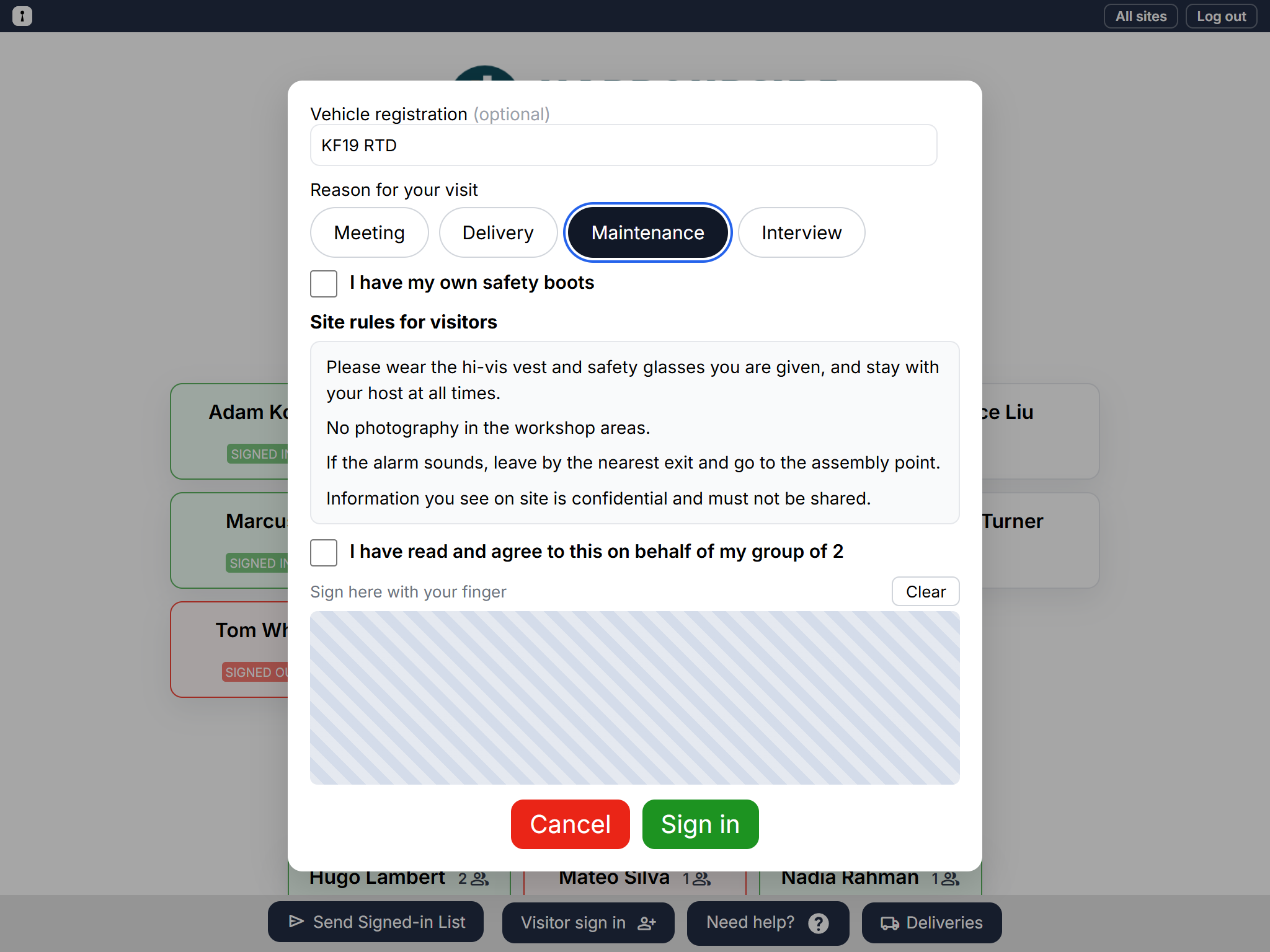
What visitors see
The questions appear on the visitor sign-in form, after the visitor's details. Yes / No and Choose one questions are big buttons to tap. If a required question isn't answered, or a Tick to confirm isn't ticked, the form says what's missing and scrolls to it.
Change or remove a question
Edit the wording, type or sites and click Save questions. To stop asking a question, click Remove question under it and confirm.
Answers already given are never changed: each visit keeps the question's wording as it was when the visitor signed in.
See the answers
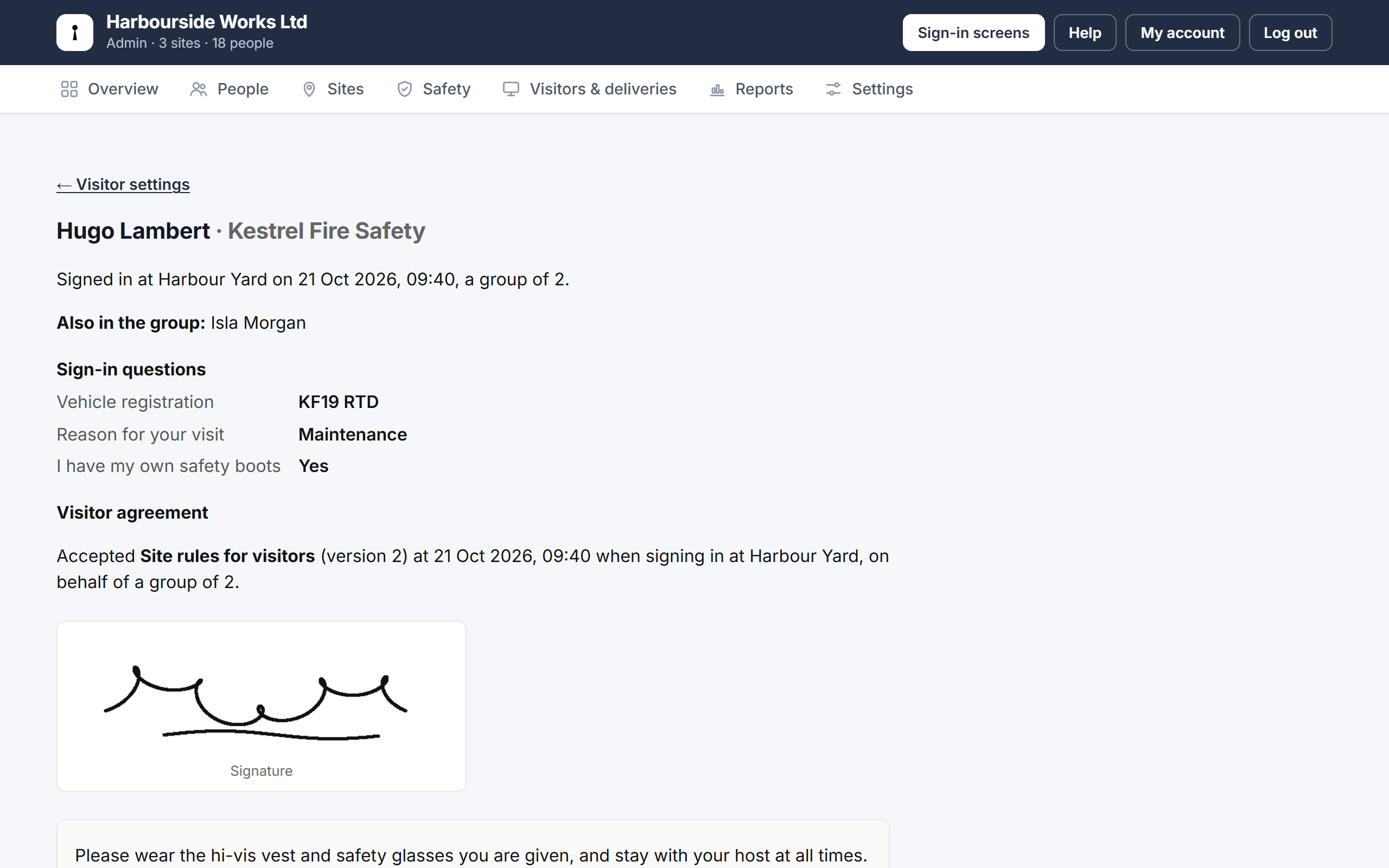
- Go to Admin → Reports → Sign-in events and find the visitor.
- Click Visit details under their company.
You'll see their answers, anyone else named in their group, and the visitor agreement they accepted, if you use one.
Good to know
- Each site's card under Site settings lists the questions asked there, with a link to edit them.
- Answers are included when you download your data.
- The Overview tab shows how many sign-in questions you have.