
Maximum on site
Set a maximum for a site, for example its fire safety limit, and Clavarius tells you when it's reached. It's off until you set a number.
Steps
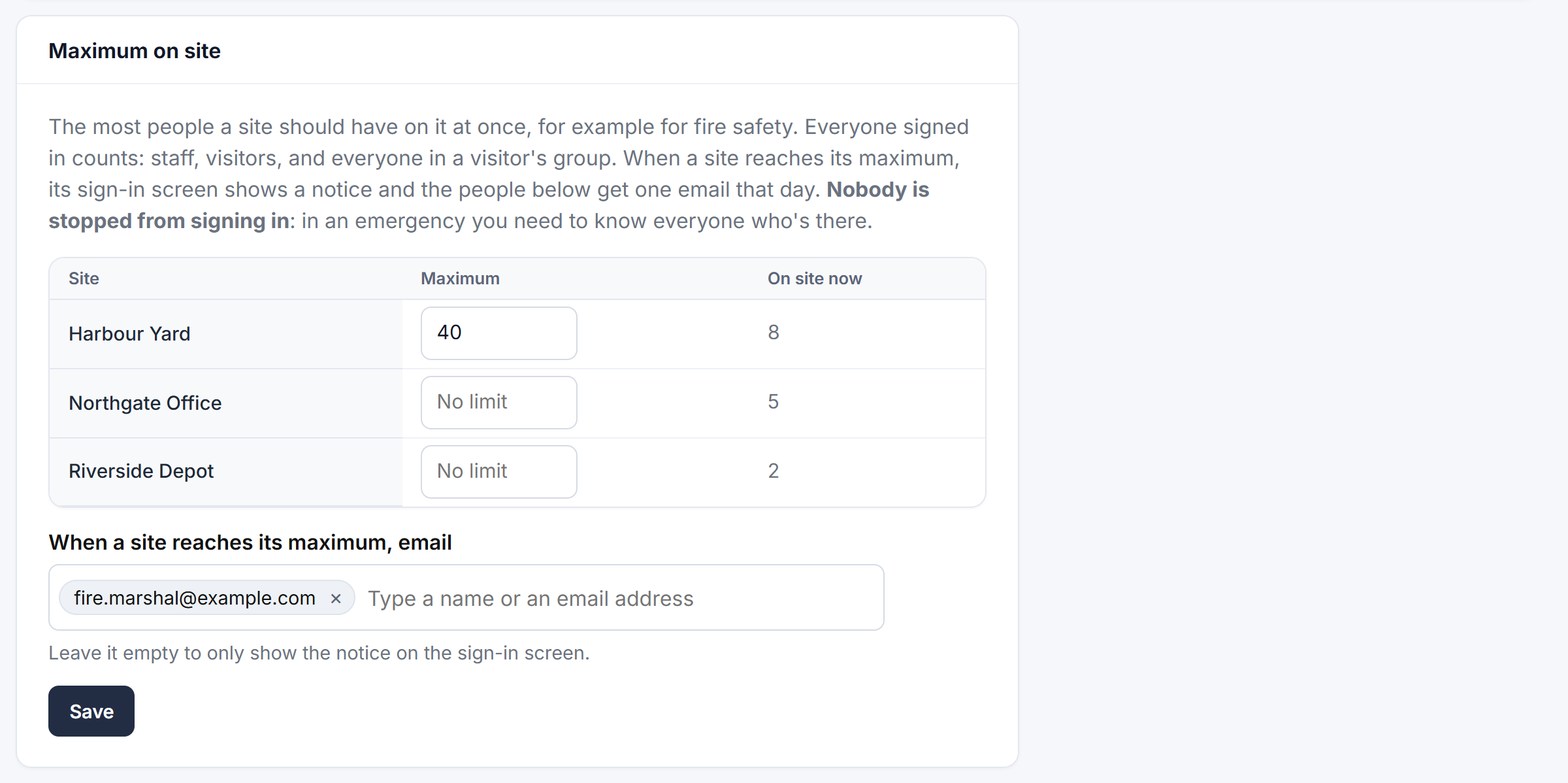
- Go to Admin → Safety and scroll to Maximum on site.
- Type a Maximum next to each site that needs one. Leave a site empty for no limit. On site now shows the current number.
- Under When a site reaches its maximum, email, choose people from People or type email addresses. Leave it empty if you only want the sign-in screen to warn.
- Click Save.
Who counts
Everyone signed in at the site: staff, visitors, and every person in a visitor's group.
What happens at the limit
- The sign-in screen shows a notice saying the site has reached its maximum, and says so again after each sign-in.
- The people you chose get one email, the first time the site reaches its maximum that day.
- The site's card on the Overview page shows how many are on site against the maximum.
Good to know
- A site with a maximum shows the Maximum on site icon in green on the Sites tab.
- The email is listed under Reports → Emails sent, and the moment the site was full appears in Today's activity.