
Sign in on your phone
If a site has phone sign-in switched on, you'll see a QR code on its sign-in screen or on a poster at the entrance. You don't need an app or an account.
Steps
- Point your phone's camera at the QR code and tap the link that appears.
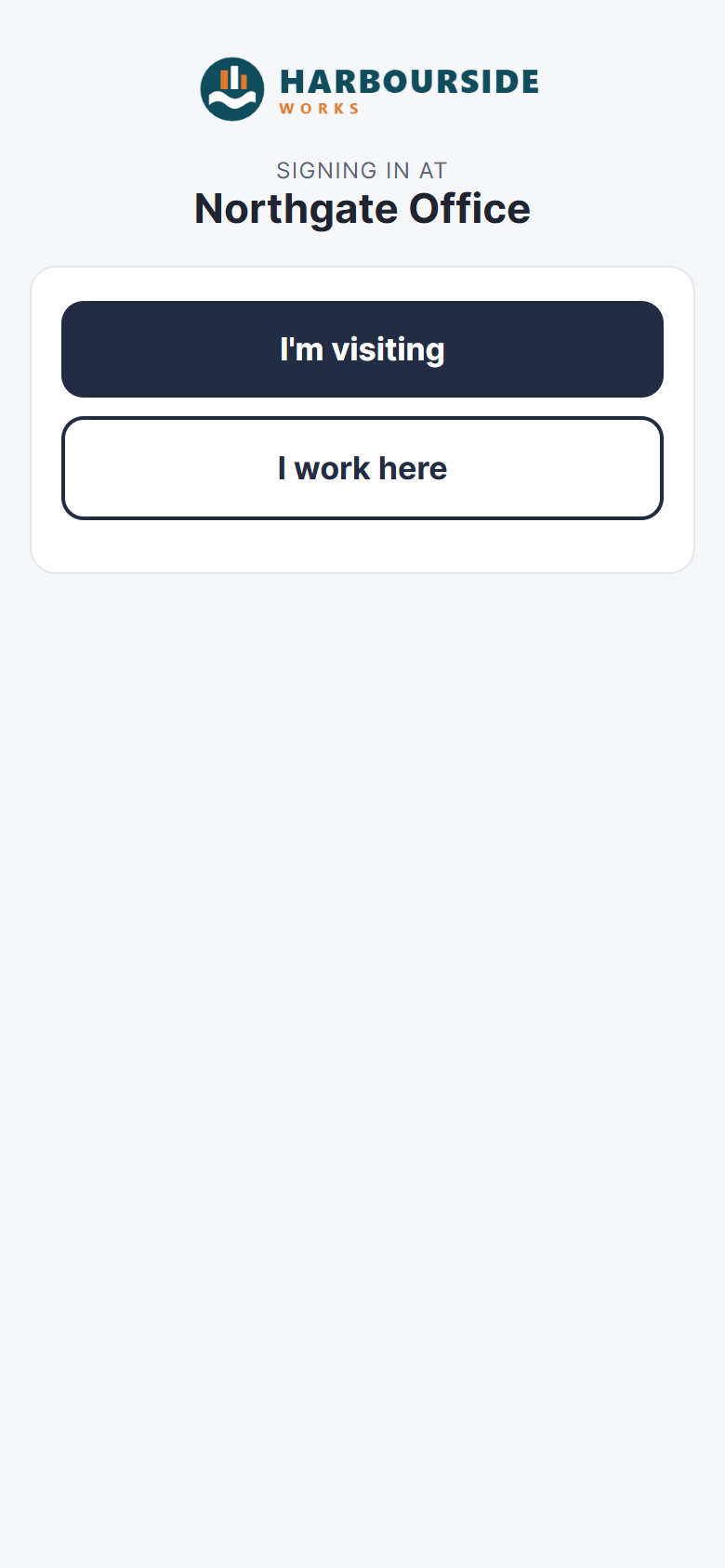
- Choose I'm visiting or I work here.
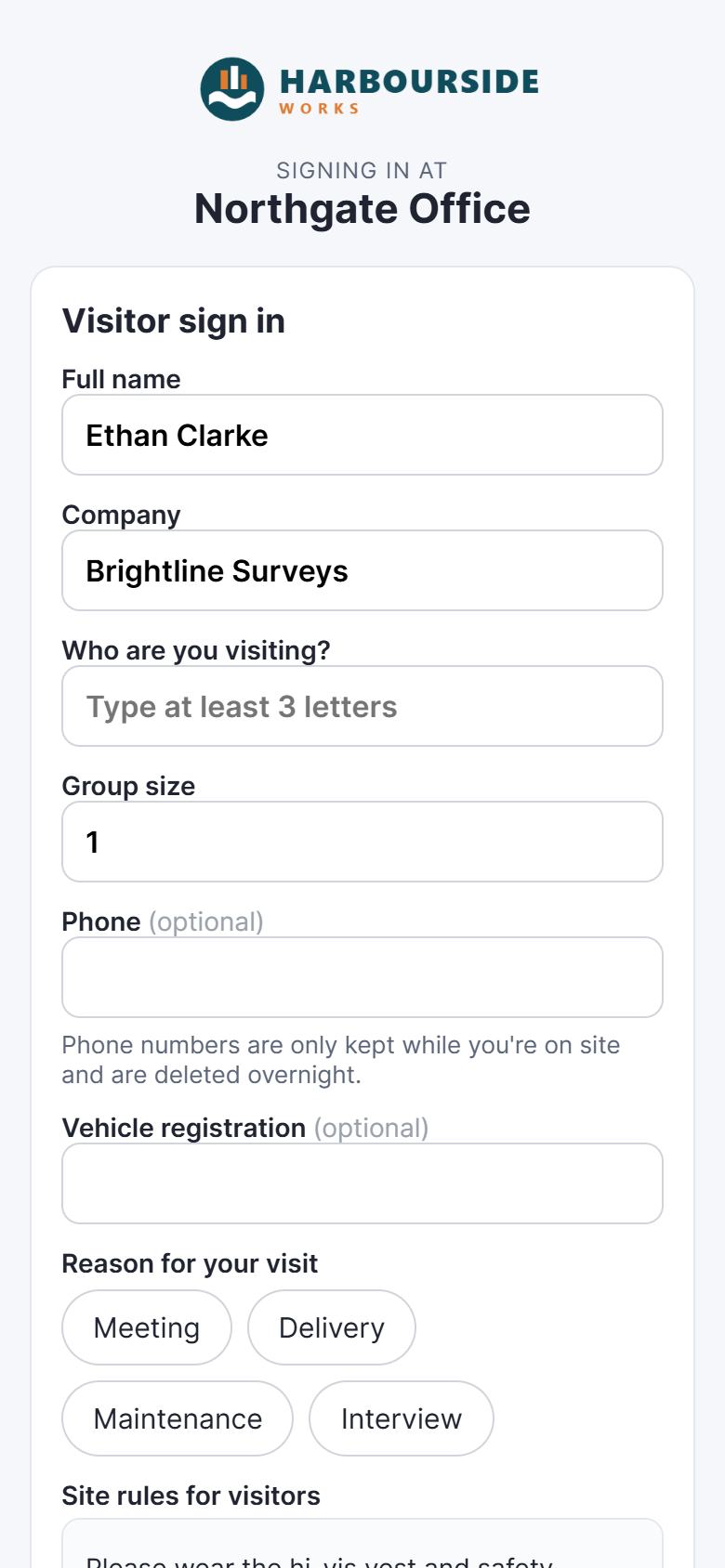
Visitors
- Fill in the form: your Full name, Company, who you're visiting (if the site asks) and anything else the site needs. If there are site rules, read them, tick to agree and sign with your finger.
- Tap Sign in.
When you leave, scan the code again on the same phone. It shows You're signed in with a Sign out now button.
Staff
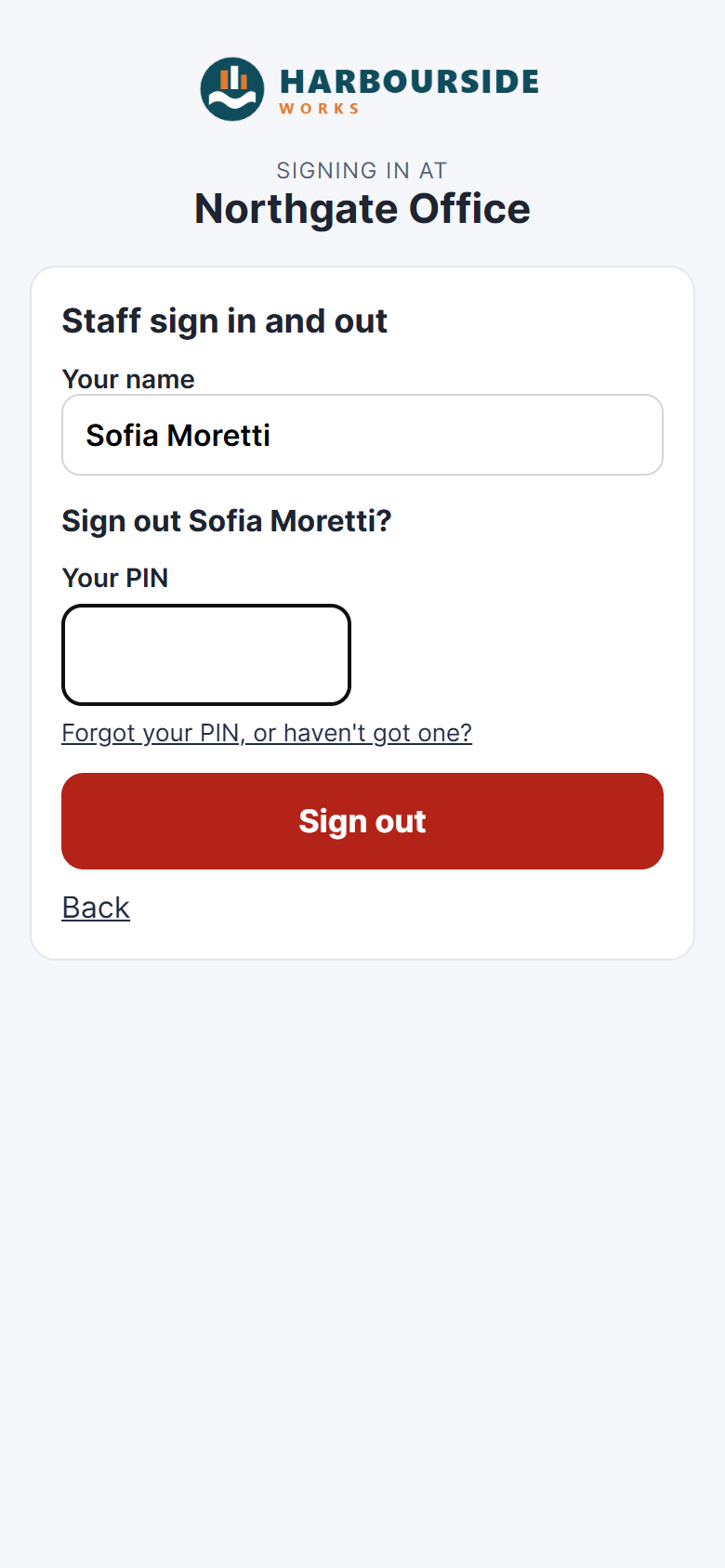
- Type the first three letters of your name and tap it in the list.
- If your organisation uses a PIN, enter Your PIN.
- Tap Sign in (or Sign out).
Next time you scan, your phone says Welcome back with your name, so it's one tap. If someone else is using your phone, tap Not you? and it forgets you.
Forgot your PIN?
Tap Forgot your PIN, or haven't got one?. If your admin has your email address, you'll get an email with a link to choose a new PIN. Ask again a few minutes later if it doesn't arrive, and check your spam folder. You can also ask on the tablet: tap your name and then Forgot your PIN?.
Good to know
- The page you get from the code expires after a while. If it says This page has expired, scan the code again.
- Signing in on your phone counts exactly like the tablet: you're on the Signed-in List and the roll-call.
- If you can't find your name, ask your admin to check you're active and allowed to use this site.