
Let people sign in on their own phone
With phone sign-in on, staff and visitors can scan a QR code with their phone's camera and sign in and out there, instead of queuing at the tablet. It's off until you switch it on, one site at a time.
Turn it on
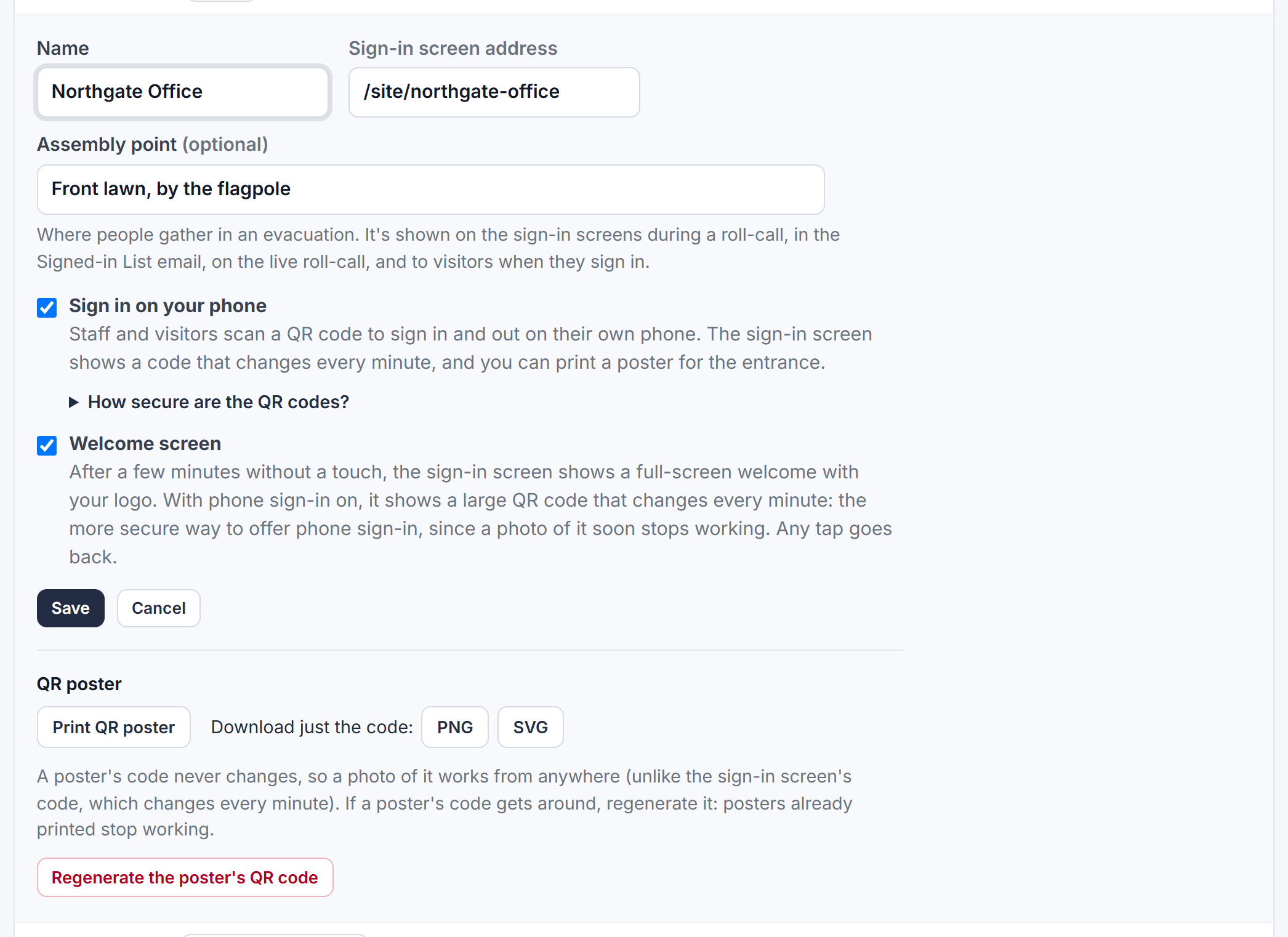
- Go to Admin → Sites and click Edit next to the site.
- Tick Sign in on your phone.
- Click Save and confirm.
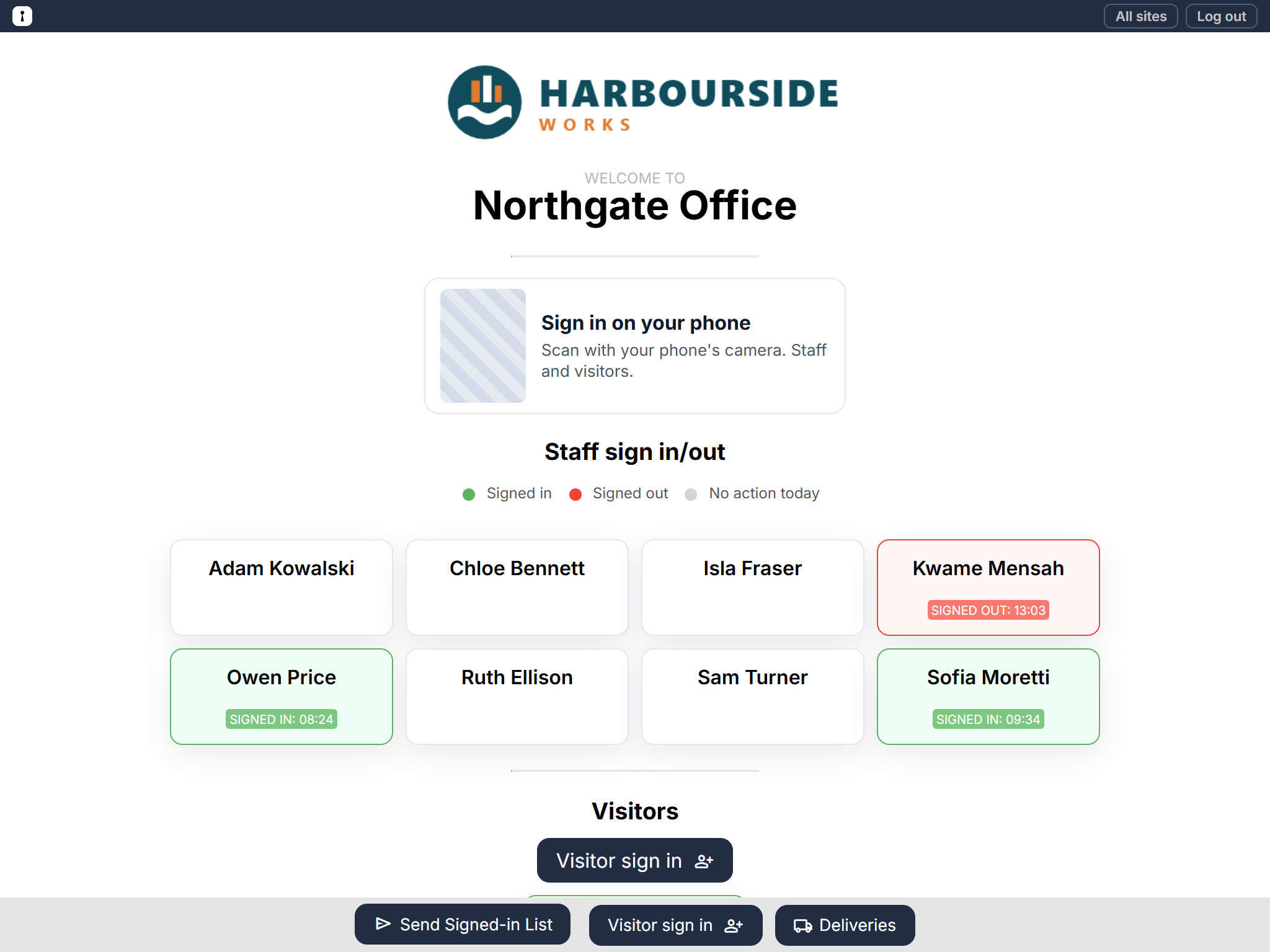
The site's sign-in screen now shows a small Sign in on your phone QR code above the staff names, and the site's row on the Sites tab shows a green phone icon.
Print a poster or download the code
Once phone sign-in is on, the site's settings have a QR poster section:
- Print QR poster opens a ready-made A4 poster with your logo, for the entrance or reception desk.
- PNG and SVG download just the code, so you can put it in your own signs or visitor emails.
Which code should you use?
Scanning either code opens a sign-in page for that site. That page expires after a while, so a saved or forwarded link can't be used again later.
| Code | Changes? | Good for |
|---|---|---|
| On the sign-in screen | Every minute, and each one soon stops working | The most secure option: only someone standing in front of the screen can use it |
| On a printed poster | Never, until you regenerate it | Sites without a tablet, or a second entrance |
To show the screen's code large when nobody is using the tablet, turn on the welcome screen.
What people can do on their phone
- Visitors fill in the same form as on the tablet, including your sign-in questions and any agreement. The same phone can sign them out later the same day.
- Staff type the first few letters of their name and pick it. Their phone remembers them for next time.
See Sign in on your phone for what they see.
Good to know
- To make sure staff are who they say they are, turn on the staff PIN for phone sign-in.
- Sign-ins from a phone count exactly like the tablet's: in the Signed-in List, roll-calls, reports and logs.
- Untick Sign in on your phone to switch it off again. The codes stop working straight away.