
Staff PINs
A staff PIN stops people signing in or out for someone else. Staff enter it after choosing their name. It's off until you switch it on.
Choose where it's asked for
- Go to Admin → Security.
- Under Staff PIN, choose:
- Off: nobody is asked for a PIN.
- On phone sign-in: staff need their PIN to sign in on their own phone (phone sign-in).
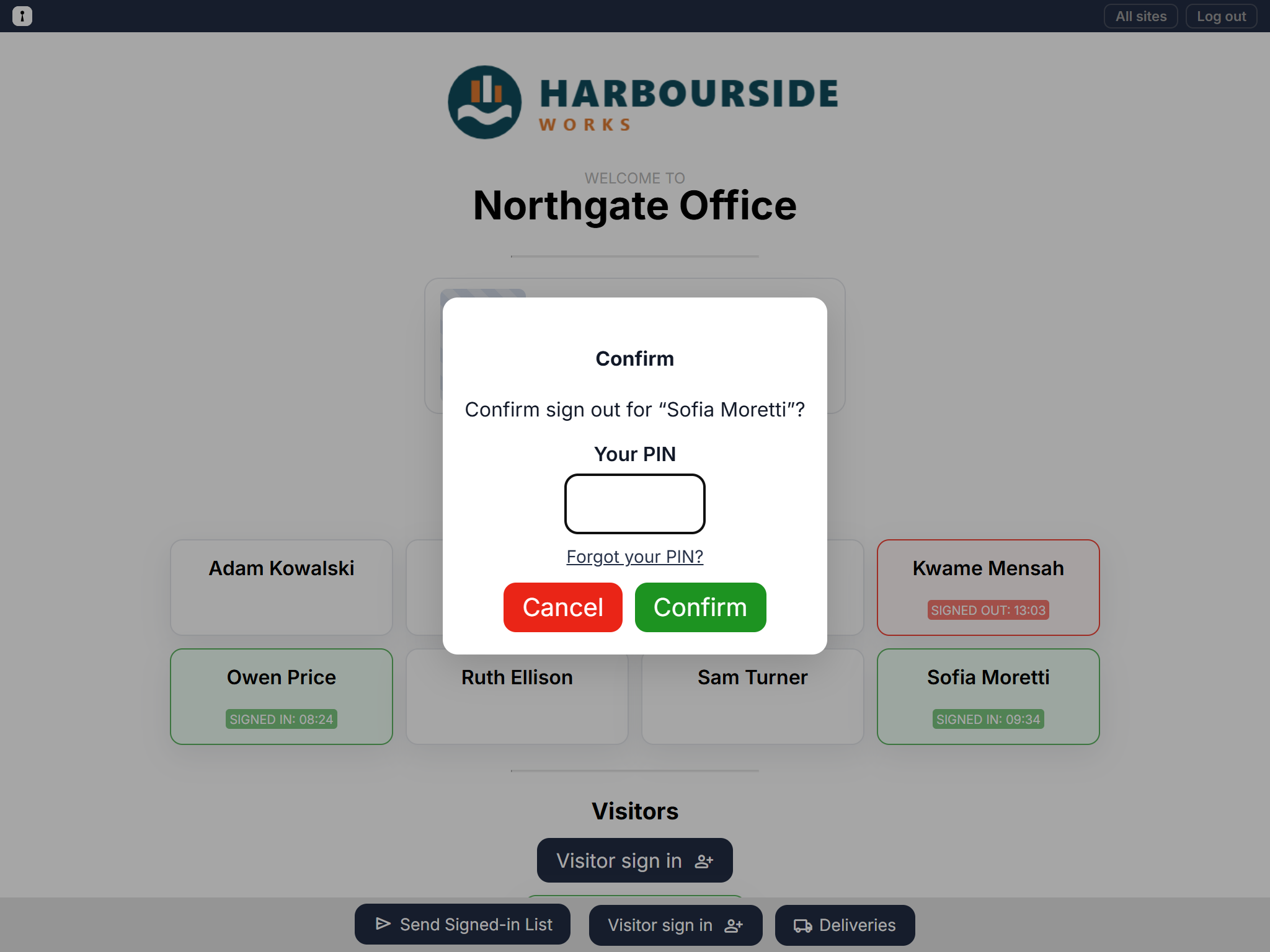
- On phone sign-in and the tablet: the sign-in screen asks for it too, from anyone who has one.
- Under Ask at, choose All sites, or Only these sites and tick the sites.
- Click Save.
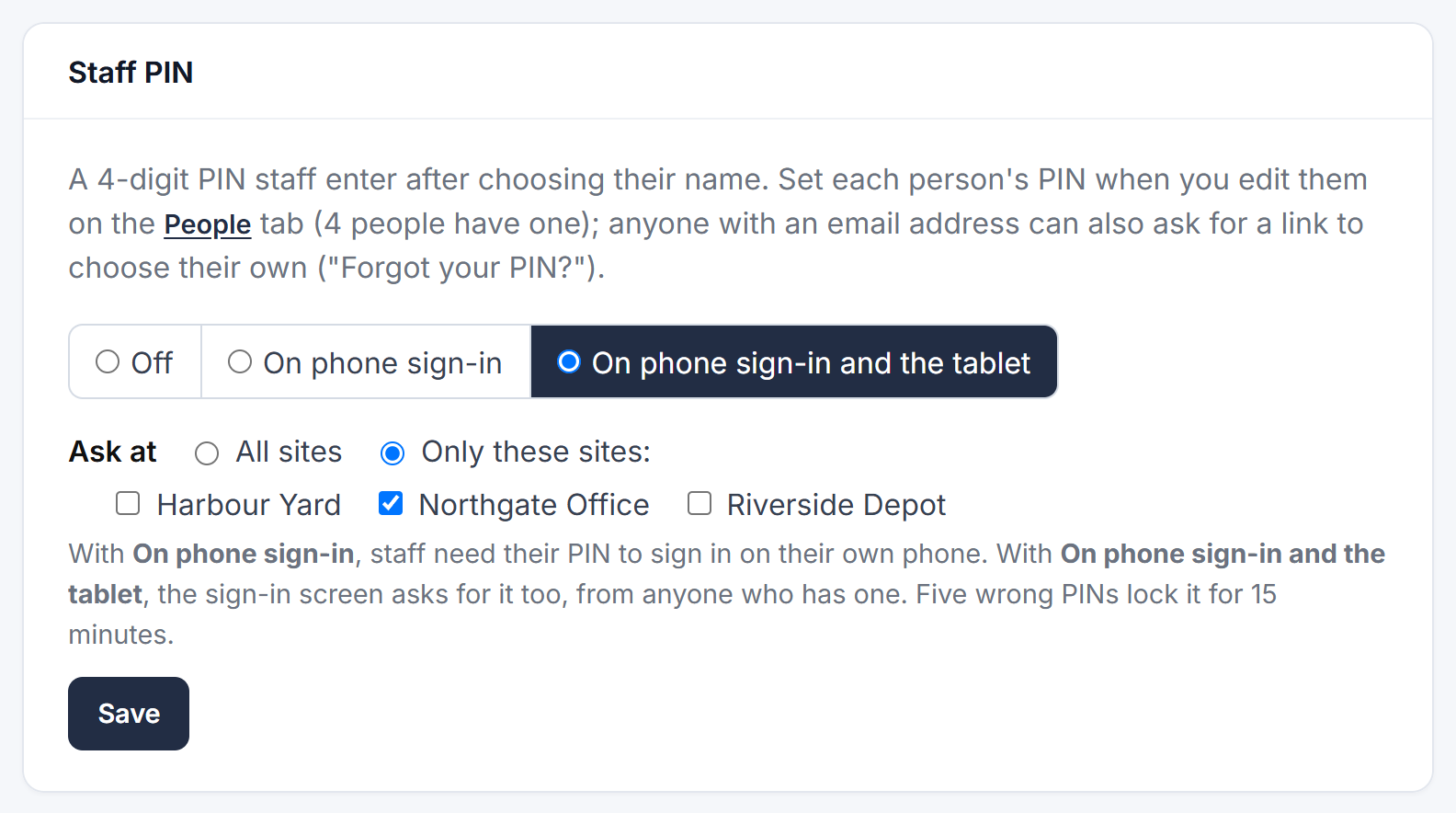
Sites you don't tick never ask for a PIN.
Give people a PIN
There are two ways:
- You set it. Go to Admin → People, click Edit next to the person, type a New 4-digit PIN next to Staff PIN and click Save changes. Tell them their PIN; it's never shown again.
- They choose it. Anyone with an email address can tap Forgot your PIN, or haven't got one? on their phone, or Forgot your PIN? on the tablet, and get an email with a link to choose their own.
The Staff PIN column on the People tab (the key icon) shows who has one.
Good to know
- With On phone sign-in, staff without a PIN can't sign in on their phone until they get one. The Overview's Staff PIN row warns you if nobody has one yet.
- Easy-to-guess PINs such as 1234 or 0000 aren't accepted.
- After several wrong PINs in a row, the PIN is locked for a while, so it can't be guessed.
- To take someone's PIN away, edit them and tick Remove their PIN.